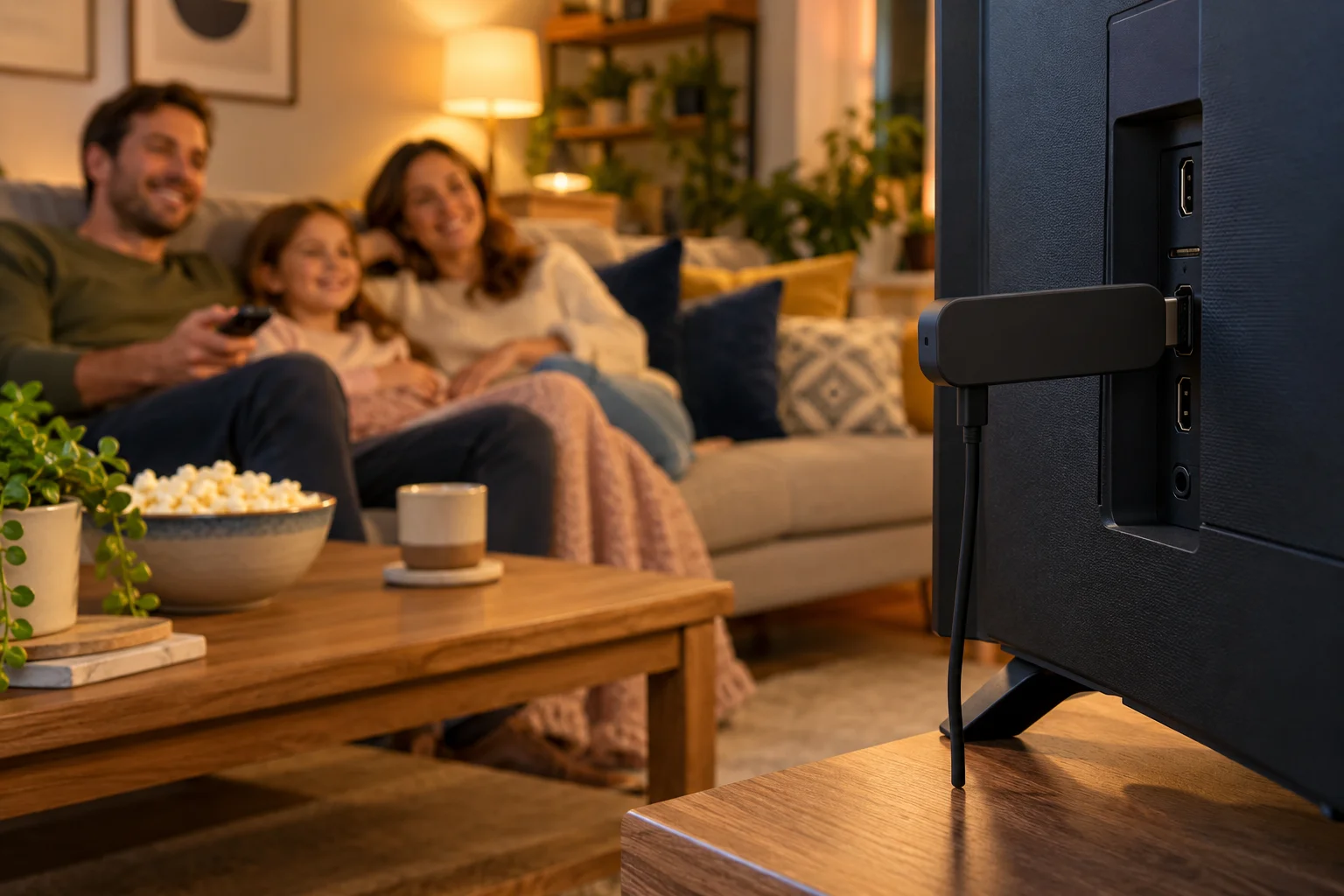
IPTV Troubleshooting: A Master Checklist for UK Viewers
IPTV not working? Use this master checklist to fix a black screen, login error, crashing app, empty channel list, no sound or missing guide, and learn exactly what to send support.
It is Saturday evening, the family is on the sofa and the screen is black. Almost every IPTV user has had a moment like it, and in nearly every case the cause is something small and fixable. This IPTV troubleshooting guide gives you a master checklist you can work through in minutes, without needing any technical background.
We start with the quick general checks that solve most faults, then go through the most common problems one by one: black screen, login error, app crashing, empty channel list, no sound and a missing guide. At the end you will find exactly what to send support so a problem is solved fast. IPTV Premium UK offers 24/7 support and free setup help, but many issues can be fixed in under five minutes at home.
Key takeaways
- Start with the basics: restart the app, then the device, then the router.
- Most faults come from the internet connection, a wrong password or a wrong setting, not from the TV itself.
- About 10 Mbps is enough for HD and 25 Mbps is recommended for 4K, ideally over a cable or strong Wi-Fi.
- Do not reinstall the app before you take a screenshot of the MAC Address and Device Key.
- When you contact support, send your device, the app, what you see and a screenshot.
- Payment details can take between 5 minutes and 2 hours to arrive, so check spam and wait before you worry.
The 60-second master checklist
Before you look at a specific symptom, run through these seven checks in order. Together they solve a large share of problems.
- Check other apps. Open a website or a different streaming app on the same device. If nothing works, the problem is your internet, not IPTV.
- Restart the IPTV app. Close it fully, not just to the home screen, and open it again.
- Restart the device. Switch off your Firestick, TV, box, phone or computer and turn it on again.
- Restart the router. Unplug it for about 30 seconds, plug it in and wait a few minutes for it to reconnect.
- Check your Wi-Fi or cable. Move closer to the router, or use a network cable.
- Turn off any VPN. A VPN can slow or block a stream.
- Try another channel. If one channel fails but others play, the problem may be with that channel only.
If the problem is still there, find your symptom below.
Black screen or video not loading
This is the most common complaint, and the one that causes the most panic.
Quick fixes
- Wait 10 to 20 seconds, as some channels take a moment to start.
- Switch to a different channel and then back.
- Restart the app, the device and the router.
- Check the picture is on the right HDMI input on your TV.
- Turn off any VPN.
- Lower the video quality if your app has the option.
If only one channel is black
That channel may be temporarily down, or it may be a higher-quality stream than your connection can handle. Try a similar channel. If you need a specific channel, tell support the exact name and what you see.
If everything is black
Check the speed. About 10 Mbps is required for HD and 25 Mbps is recommended for 4K. Our guide to internet speed for IPTV shows how to test properly. If you see a stalling picture rather than a black one, read our guide on fixing IPTV buffering.
Login error or wrong password
You open the app and it says the login failed, the details are wrong or the account is not recognised. Do not panic. Typing errors cause more login problems than anything else.
Check the details
- Compare the details with our message character by character.
- Watch for capital letters and lowercase letters. Passwords are case sensitive.
- Look for extra spaces at the start or end if you pasted the details.
- Look-alike characters such as a zero and the letter O, or a capital I and a lowercase l, are common traps.
Copy and paste instead of typing
Copy the details from our email or WhatsApp message and paste them into the app. It is much more reliable than typing.
Apps that use a MAC address and Device Key
On many apps, there is no username and password. Instead, the app shows a MAC Address and Device Key, and our team sets it up for you. If your channels are not loading, you may need to send us a fresh screenshot, especially if you reinstalled the app or changed device. The installation guide shows the steps for each device.
Account expired
If the app worked yesterday and now shows an expiry message, your subscription period may have ended. Check your order details and contact us on WhatsApp. We will tell you the status and how to renew.
App crashing or freezing
If the app closes by itself, restarts or freezes on opening, the cause is usually the app or the device rather than the service.
Quick fixes
- Force close the app and open it again.
- Restart the device.
- Check that the app is up to date in your store.
- Free up storage. A full device can make apps unstable.
- Clear the app cache in your device settings, if the option exists.
- Uninstall and reinstall the app, after taking a screenshot of the MAC Address and Device Key.
Old or very busy devices
An older model with limited memory can struggle. Close other apps and restart. If crashes continue, try another compatible app. Our guide to the best IPTV player apps lists the options, and IB Player is our recommended app.
When to reinstall
Reinstall only after the quick fixes fail. It is a useful step, but it can mean sending us a new MAC Address and Device Key screenshot so we can set the app up again. That is free, and it is quick on WhatsApp.
No channels or an empty channel list
You open the app and the list is empty, or only a few categories appear.
Quick fixes
- Wait a minute. Large lists can take time to load, particularly with 25,000+ live channels.
- Update or reload the playlist in the app settings.
- Check your internet connection and restart the router.
- Check the playlist or portal details you entered. A typing error will leave the list empty.
- Make sure you have sent us the correct MAC Address and Device Key, and that we have confirmed the setup.
- Restart the app and the device.
Categories missing
Some apps hide categories. Check the app's settings for category or group filters, and if something is missing, tell us which app you use.
New device or new app
If you have changed device, the setup may need repeating, because the MAC Address and Device Key will be different. Send us the new screenshot and we will set it up.
No sound or sound out of sync
Picture without sound, or sound that lags behind the picture, feels like a serious fault. It is often a setting.
- Check the volume on the TV, the remote, the soundbar and the app.
- Check the TV is not muted.
- Try another channel to see whether the problem is one stream.
- Change the audio track in the app, if it has that option.
- Change the audio output setting on your device, for example from surround to stereo.
- If you use a soundbar or AV receiver, check the HDMI input and restart it.
- Restart the app and the device.
If sound is out of sync on a single channel, it is probably the channel. If it affects all of them, restart the device and router and check the connection.
EPG missing or wrong
The TV guide can go blank or show the wrong times even when the channels play perfectly.
Quick fixes
- Check the date, time and time zone on your device. Set them to automatic.
- Refresh the EPG in the app settings.
- Use the EPG link we send you, copied and pasted, if your app asks for one.
- Try the EPG timeshift setting if the times are an hour out.
- Restart the app.
For a full walkthrough, see our guide to the IPTV EPG and TV guide.
Buffering and freezing
Buffering is when the picture pauses, stutters or shows a spinning wheel. Our standard fixes work for most people.
- Restart the app and the router.
- Use a cable or sit closer to Wi-Fi.
- Turn off any VPN.
- Pause downloads and other streams in the home.
- If it continues, contact support with your device and what you are watching.
Payment details not received
After you choose a plan and enter your name, email and WhatsApp number, no payment is taken on the website. Payment details and order details are then sent by email and WhatsApp.
What to check
- Wait. They arrive between 5 minutes and 2 hours.
- Check your spam or junk folder for the email.
- Check your WhatsApp messages, including message requests from an unknown number.
- Check the details you entered. A typo in the email address or the WhatsApp number can stop messages arriving.
- Contact us if nothing has arrived after two hours.
Message IPTV Premium UK on WhatsApp at +44 7446 385834 or email support@iptvpremiumuk.com. We can confirm what we have on file and resend the details. You can read the refund policy at any time if you have a question about payments.
When to restart, and when to reinstall
Knowing the right level of fix saves time.
- Restart the app for a single glitch, a frozen screen or a channel that will not start.
- Restart the device for repeated glitches, no sound or an app that will not open.
- Restart the router for buffering, slow loading or when no app can connect.
- Clear the cache for an app that behaves strangely or loads slowly.
- Reinstall the app only when everything else has failed, and take a screenshot of the MAC Address and Device Key first.
- Contact support whenever you have tried the quick fixes and the problem remains.
What to send support so it is solved fast
A good message can turn a long back and forth into a single reply. When you contact IPTV Premium UK, include:
- Your device: for example Firestick, Samsung TV, Android box, iPhone, Windows PC, Mac or MAG box.
- The app: for example IB Player, TiviMate or IPTV Smarters.
- What you see: black screen, error message, empty list, no sound. Write the wording of any error.
- What you were watching: the channel or programme name.
- A screenshot or photo: of the error, or of the MAC Address and Device Key screen.
- What you have already tried: restarts, cable, VPN off.
- Your order details: the name and email you used.
Send it by WhatsApp on +44 7446 385834 or by email at support@iptvpremiumuk.com. Support is 24/7, and a short, clear message is always faster than "it is not working".
Prevent problems before they start
A few habits keep IPTV Premium UK, or any IPTV service, running smoothly.
- Keep your app and device updated.
- Use a cable where you can.
- Restart the router once in a while.
- Save our WhatsApp number and your order details.
- Do not delete the app without a screenshot of the MAC Address and Device Key.
- Read the FAQs for answers to common questions.
FAQ
Why is my IPTV not working?
Start with the basics. Check your internet with another app, restart the IPTV app, the device and the router, and turn off any VPN. If it is still not working, tell support your device, app and what you see.
Why do I get a black screen on IPTV?
A black screen is often a connection issue or a channel that is slow to start. Wait a few seconds, try another channel, restart the app and router and check your speed. If every channel is black, contact support with a screenshot.
Why does it say wrong password or login error?
Typing mistakes, capital letters and extra spaces are the usual causes. Copy and paste the details from our message. If you changed device or reinstalled the app, you may need to send us a new MAC Address and Device Key screenshot.
My app keeps crashing. What should I do?
Force close it, restart the device, update the app and free up some storage. If it continues, reinstall it after taking a screenshot of your MAC Address and Device Key. You can also try another compatible app.
Why is my channel list empty?
The playlist may not have loaded, or the details may be wrong or not yet set up for your device. Wait a minute, update the playlist, restart the app and check your connection. Then message us with your device and app.
My payment details have not arrived. What now?
Check your spam folder and WhatsApp first, and allow up to 2 hours. If nothing has arrived after that, contact us on WhatsApp or email and we will check your order.
What if my subscription has expired?
If the app shows an expiry message, your plan period may have ended. Contact us on WhatsApp with your order details and we will confirm and explain how to renew.
Conclusion
Most IPTV problems are small and quick to fix. Work through the master checklist, find your symptom, try the quick fixes and, if needed, send support a clear message with your device, app, what you see and a screenshot. Check the installation guide if you need to set a device up again.
If you are not yet a customer, look at our plans or request the £5 1-day trial through the website chat to see how IPTV Premium UK runs on your own connection. For help at any time, message us on WhatsApp at +44 7446 385834 or contact us, and our team will be glad to help.
Want more guides like this?
Add IPTV Premium UK as a preferred source on Google, so our new articles show up more often in your Top Stories.
Ready to start watching?
25,000+ live channels and 140,000+ movies and series in HD and 4K, with free setup and 24/7 support.