Fix IPTV Buffering and Freezing: Step-by-Step UK Guide
IPTV buffering, freezing or stuttering? Follow this clear fix order: restart the app and router, cable vs Wi-Fi, speed check, VPN off, busy networks and what to tell support.
Few things are more annoying than the spinning wheel appearing just as the match reaches a crucial moment or the film hits its best scene. If you want to fix IPTV buffering, the good news is that most cases come down to a handful of everyday causes in your home network, your device or your app, and they can be checked in a sensible order without any technical background.
This guide walks you through the causes of IPTV buffering, freezing, lagging and stuttering, then gives you a clear fix order (written by the team at IPTV Premium UK) to follow. Start at step one, test after each change, and stop when the picture is smooth again. If nothing helps, you will also learn exactly what to tell support so that the problem can be diagnosed quickly.

Key takeaways
- Most IPTV buffering is caused by the home network, not the channel itself, so check your own setup first.
- Follow the fix order: restart the app, restart the router, use a cable or sit closer to Wi-Fi, check your speed, turn off any VPN, then look at other devices on the network.
- About 10 Mbps is the guide for HD and 25 Mbps is recommended for 4K, so a speed test tells you quickly whether your line is the limit.
- Evening peak hours can make a busy home network struggle, so a wired connection and fewer simultaneous streams help a lot.
- If the problem continues, contact support with your device, the app and exactly what you were watching.
What buffering, freezing and stuttering actually mean
People use several words for the same family of problems, but they describe slightly different symptoms, and knowing which one you have points you to the right fix.
- Buffering: the picture stops and a wheel appears while the app waits for more data. This usually means data is arriving more slowly than it is being played.
- Freezing: the picture stops but the sound may carry on, or everything locks and then jumps forward. This can be a network hiccup, but it can also be a tired device running out of memory.
- Lagging: menus, channel changes or the guide respond slowly. This often points to the device or the app rather than the stream.
- Stuttering: the picture moves in small jerks, like a film played at the wrong speed. This can be a weak Wi-Fi signal dropping packets, or a device struggling to decode 4K.
An IPTV stream is simply TV delivered over the internet, so it behaves like any other live video. ## The most common causes of IPTV buffering
Before the steps, here is a quick tour of what tends to go wrong. You do not need to memorise this, but it helps to see why the fix order below makes sense.
Weak or crowded Wi-Fi
Wi-Fi is convenient, but it is the single most common reason for IPTV Wi-Fi problems. Walls, floors, a router tucked behind the TV unit, a fish tank, a microwave and your neighbours' networks can all reduce the signal. The result is a connection that looks fine on a phone but drops out under the steady load of live video.
A slow or overloaded broadband line
If your broadband line is slower than your household needs, the stream will suffer whenever other people are online. A single HD stream needs far less than a family running 4K on the living room TV, a tablet in the kitchen and a games console upstairs.
A VPN in the middle
A VPN sends your traffic through another server, which can add delay and reduce speed. Even a good VPN may slow a stream if the server is busy or far away. We cover this in more detail in our guide to IPTV with a VPN.
Peak-time congestion
In the evening many households stream at once, so a network that is fine at 10 am may struggle at 8 pm.
Step 1: Restart the app
Begin with the quickest check. Close the IPTV app completely rather than just pressing the home button, then open it again and try the same channel.
- Exit the app fully. On a Firestick, go to Settings, then Applications, then Manage Installed Applications, choose the app and select Force stop.
- Reopen the app and load the same channel.
- Try one or two other channels or a film to see if the problem is everywhere or only in one place.
If one channel is poor but others play smoothly, note its name and the time. That detail is valuable if you contact support later.
Step 2: Restart the router (and the device)
A proper router restart is the next move, and it is worth doing correctly rather than tapping the power button for a split second.
- Switch the router off at the wall, or unplug the power lead.
- Wait at least 30 seconds so that it fully resets.
- Plug it back in and wait a few minutes for all the lights to settle.
- Restart your streaming device too. On a Firestick, unplug the power for 30 seconds, or use Settings, then My Fire TV, then Restart.
Once everything is back online, play the stream again. This single step clears a surprising number of freezing and slow-IPTV complaints.
Step 3: Use a cable or move closer to the Wi-Fi
If buffering returns after a restart, look at how the device is connected. This is the step that makes the biggest long-term difference.
Cable versus Wi-Fi
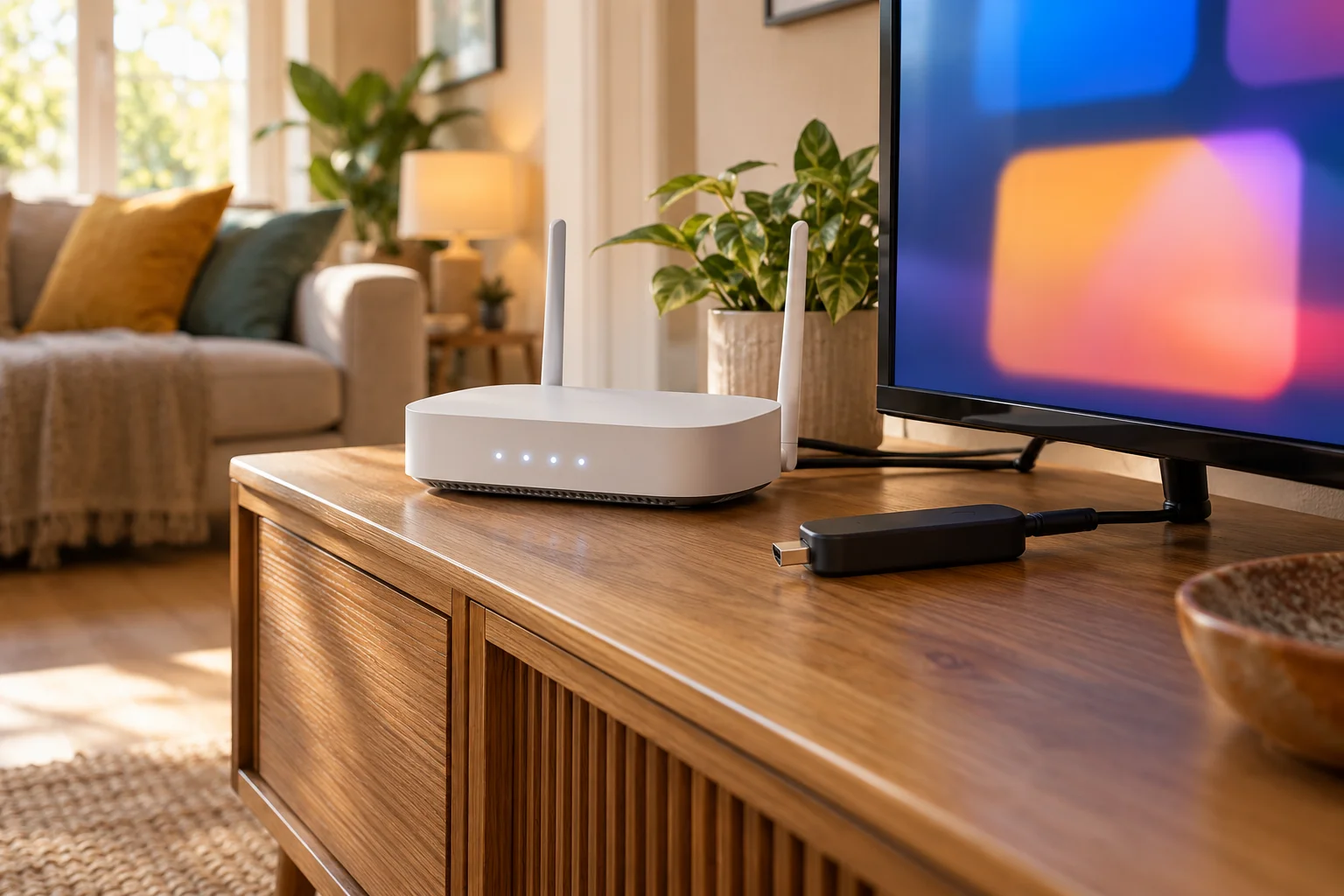
A wired Ethernet connection is steadier than Wi-Fi because it is not affected by walls, interference or distance. If your TV, box or PC sits near the router, run a cable and test again. Many streaming devices support wired connections with a small adapter, so check what your device offers.
If you must use Wi-Fi
When a cable is not practical, improve what you have:
- Move the router out of cupboards and keep it central and raised, away from the microwave.
- If your router offers both bands, try the 5 GHz network, which is usually faster at shorter distances, while 2.4 GHz tends to reach further but can be more crowded.
- In larger homes, a mesh Wi-Fi system can help.
Before buying anything, test by taking the device into the same room as the router. If the stream is smooth there, you have found your answer: it is the Wi-Fi, not the service.
Step 4: Run an IPTV speed test
Next, find out whether your internet speed matches what streaming needs. As a guide, you need about 10 Mbps for HD and about 25 Mbps recommended for 4K. These figures are per stream, so multiply if several people are watching at once.
Use a free speed test on a device on the same network, ideally in the same room as the TV and at the time buffering happens, and run it two or three times. If your speed is well above the guide figures, look at Wi-Fi quality, VPN or device problems next. If it is close to or below the guide, your connection is the bottleneck. We have a full breakdown in our guide to internet speed for IPTV, HD and 4K, including how many Mbps you need when several devices are in use.
Step 5: Turn off your VPN
If you use a VPN on your router, phone or streaming device, switch it off and test again. This is one of the quickest ways to rule a major cause in or out.
- Disconnect the VPN app on the device you are watching on.
- Check that no VPN is running on your router or another device that shares the connection.
- Reopen the IPTV app and play the same channel.
If the picture becomes smooth, the VPN was slowing the stream. You can try a different server location, a different protocol in the VPN settings, or leave the VPN off while watching. Remember to follow the laws where you live and the Terms of Use of any service you use.
Step 6: Check what else is using your network
Your IPTV may be perfectly healthy while something else eats the bandwidth. Streaming on the TV competes with everything else in the house.
Large downloads, cloud backups, video calls and smart cameras are the usual culprits. Pause big downloads while you watch live events, ask the household to go easy for the length of a match or film, and disconnect devices you are not using.

Step 7: Fix IPTV buffering on a Firestick
Buffering on a Firestick deserves its own section because the device is so popular and a few small habits make a big difference.
- Clear the app cache: go to Settings, Applications, Manage Installed Applications, choose your IPTV app, then Clear cache. Do not choose Clear data unless you are prepared to set the app up again.
- Free up storage and restart weekly: a nearly full Firestick can freeze even with fast internet.
- Try wired: an official Ethernet adapter can transform stability if your Firestick is a model that supports one.
If you are setting up from scratch, our installation guide shows how the app is installed with the Downloader app. For a full walk-through, see how to install IPTV on a Firestick.
Step 8: Peak-time tips
If the stream is smooth in the afternoon but struggles in the evening, try these habits.
- Use a cable in the evening if you do nothing else.
- Reduce the load: pause other streams, updates and uploads during big live events.
- Arrive early: open the channel a few minutes before kick-off so you can spot a problem and fix it before the action starts.
- Lower the quality: if the app lets you, choose HD over 4K when the connection is stretched.
For live sport especially, a little preparation goes a long way. Our live sport on IPTV guide covers how to get ready for match days.
Step 9: Contact support with the right details
If you have been through the steps and the problem remains, it is time to ask for help. Support can look at your specific case, but they need clear information to move fast. IPTV Premium UK support is available 24/7 on WhatsApp at +44 7446 385834 and by email at support@iptvpremiumuk.com. You can also reach the team from the contact us page.
When you message IPTV Premium UK, please include:
- Your device: for example Firestick, Samsung Smart TV, Android box, iPhone.
- The app you use: IB Player, TiviMate, Smarters or another.
- What you were watching: the channel name, film or event, and the time it happened.
- What you see: buffering wheel, freezing, stuttering, no picture.
- What you tried: restarts, cable test, speed test result, VPN off.
- How you connect: Wi-Fi or cable.
A message like "Firestick with IB Player, watching a live match around 8 pm, buffering every minute on Wi-Fi, speed test showed 30 Mbps, VPN off" lets support start from the right place instead of asking five questions first.

Why a good setup matters
A good subscription is only half the picture. IPTV Premium UK offers Full HD and 4K where the channel supports it and a TV guide on every plan, but your home network decides how smoothly it arrives. There is a paid 1-day trial at £5 if you want to test your connection and device first, and our FAQs answer common setup questions.

FAQ
Why does my IPTV buffer only in the evening? Evening is when most households are online, so your home network and local connection are busier. A wired connection, fewer devices streaming at once and closing background downloads usually help. Run a speed test at that time to see whether your line is the limit.
Is IPTV buffering caused by the provider or my internet? It can be either, but home network problems are the more common cause. Test other channels, try a cable, restart the router and turn off any VPN. If many channels buffer on a fast, stable connection, contact support with your details.
How fast does my internet need to be to avoid buffering? As a guide, about 10 Mbps is needed for HD and 25 Mbps is recommended for 4K, per stream. If several devices stream together, add the figures up. Wired or strong Wi-Fi gives the best results.
How do I stop IPTV buffering on a Firestick? Restart the Firestick and router, clear the app cache and free up storage. Use an Ethernet adapter if your model supports one, or place the stick closer to the router. Keep the app and device software updated too.
Does a VPN cause IPTV freezing? It can, because a VPN adds an extra step and may reduce speed. Switch it off and test the same channel. If the picture improves, try another server or leave the VPN off while watching.
Should I restart the router often? A restart now and then is fine and is the first thing to try. Leave it off for at least 30 seconds. If you need to restart it daily, tell your broadband provider.
What should I send to support if buffering continues? Send your device, the app name, what you were watching, the time, whether you use Wi-Fi or cable, and your speed test result. Mention that you have tried restarting and turning the VPN off. This lets support help you faster.
Conclusion
To fix IPTV buffering, work through the steps in order: restart the app, restart the router, switch to a cable or move closer to Wi-Fi, run a speed test, turn off any VPN, and check what else is using your network. Add a few peak-time habits and most freezing, lagging and stuttering disappears. When it does not, a clear message to support gets you the quickest answer.
Ready to try a smooth setup? Take a look at our plans. Then read the installation guide for your device, or message IPTV Premium UK on WhatsApp at +44 7446 385834 for free step-by-step setup help.
Want more guides like this?
Add IPTV Premium UK as a preferred source on Google, so our new articles show up more often in your Top Stories.
Ready to start watching?
25,000+ live channels and 140,000+ movies and series in HD and 4K, with free setup and 24/7 support.