IPTV EPG Explained: Your TV Guide, Refresh and Fixes
What is the IPTV EPG, how does the TV guide work, and why does it sometimes go blank or show the wrong times? Learn how to use, refresh and fix your electronic programme guide step by step.
Flicking through thousands of channels is fun for about five minutes. After that, you want to know what is on now, what is on next and what is worth recording or setting a reminder for. That is the job of the IPTV EPG, the electronic programme guide that sits inside your IPTV app. When it works, it feels like the familiar grid on any digital box. When it does not, you get blank rows, the wrong programme or times that are an hour out.
This guide explains what the EPG is, how it gets onto your screen, how to use it properly and what to do when it goes wrong. It is written for UK viewers and for anyone using IPTV Premium UK, but the advice applies to most IPTV apps.
Key takeaways
- The EPG is the on-screen TV guide that lists what is on each channel, now and next.
- It is delivered separately from the live video, so a channel can play while its guide is empty.
- Most EPG problems come from the wrong device time, a stale guide or a missing or wrong EPG link.
- A manual refresh in your app settings, followed by a restart, fixes the majority of issues.
- A timeshift setting can correct a guide that is an hour or more out of sync.
- If it still fails, contact support with your device, app and a screenshot.
What is an IPTV EPG?
EPG stands for electronic programme guide. It is a schedule of programme titles, start and end times and, often, a short description for each channel. In an IPTV app it usually appears as a grid, with channels down the side and time across the top, or as a simple "now and next" bar when you change channel.
Every plan from IPTV Premium UK includes a TV guide (EPG), so you can browse programmes rather than guessing.

EPG versus the channel list
It helps to separate two things:
- Channel list: the channels and the streams you can play.
- EPG: the programme information that is attached to those channels.
You can have a perfect channel list and a broken guide, or the other way round. That is why you may see a channel playing fine while the guide says "No information".
How the electronic programme guide works
The guide is not magic. Behind the scenes it is a data file, normally in a format called XMLTV, that holds programme schedules. Your app downloads that file and matches each entry to a channel.
The matching step
Each channel in your list carries an identifier. The guide data uses the same identifiers. When they match, the app shows the right programme under the right channel. When they do not, the row stays blank. This is the most common reason a few channels have a guide and others do not.
The refresh cycle
Your app downloads the guide, stores it and checks again after a set time, often once a day or when you open the app. That is why a guide can look old after a break, and why a manual refresh helps.
Time matters
Programme times are stored in a standard form and then converted to your local time. If your device clock or time zone is wrong, every programme will appear in the wrong slot, even though the data itself is correct.
How to use your IPTV programme guide
Once the guide is loaded, a few habits make it far more useful.
Browse by category first
Before opening the guide, choose a category such as sport, films, kids or news, if your app offers that. A smaller list makes the guide quicker to scan than 25,000+ live channels at once. Remember that IPTV Premium UK includes UK channels, sports, films and kids categories, so category browsing keeps things tidy.
Use now and next
Press the information or up button while watching to see what is on now and next. This is the fastest way to check whether a programme is about to end before you commit.
Search and favourites
Many apps let you search titles or mark favourites. A short favourites list is much quicker to scan than the full channel list.
Reminders and recording
Some apps can set a reminder or schedule a recording from the guide. Features differ from app to app and device to device, so check your own app's menu instead of assuming it is there.
How to refresh the EPG
If the guide looks old, empty or incomplete, refreshing it is the first thing to try.
- Open your IPTV app.
- Go to the settings area. It may be called Settings, Playlist, EPG or Source.
- Look for an option such as Refresh EPG, Update EPG, Reload or Update playlist.
- Select it and wait. A large guide can take a minute or two to download.
- Return to the guide and check a few channels.
If there is no refresh button
Some apps refresh the guide only when you reload the playlist. In that case, use the playlist update option, or close and reopen the app. Our guide to the best IPTV player apps shows the common apps, and menu names differ between them.
EPG not showing: step-by-step fixes
When the programme guide is missing or wrong, work through these steps in order. Most people fix the problem by step three.
1. Check the device date and time
Wrong time settings are a classic cause of an empty or out-of-sync guide.
- Turn on automatic date and time.
- Check the time zone is correct. For the UK that is London time, which changes between winter and summer time.
- Restart the app after you change it.
2. Refresh the EPG in the app settings
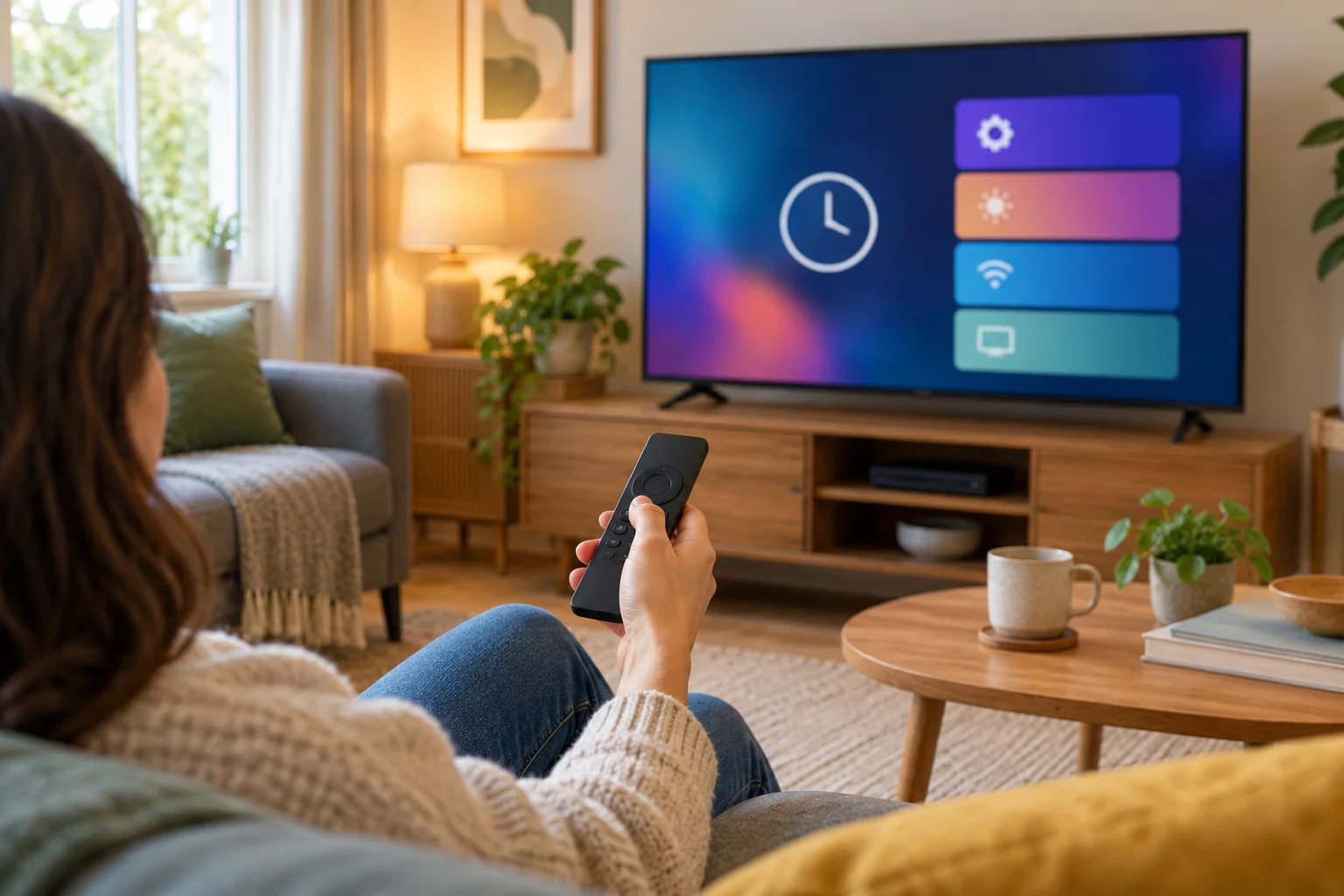
Follow the refresh steps above. If the app has separate options for the playlist and the guide, refresh both.
3. Check the EPG link
Some apps need an EPG link (sometimes called an EPG URL or XMLTV link). Use the one we send you. If you typed it by hand, a single missing character will break it. Copy and paste it from our message instead of typing it, and check there are no spaces at the start or end.
If you cannot find an EPG link or are not sure whether your app needs one, ask us on WhatsApp.
4. Restart the app and the device
Close the app fully, then restart your Firestick, TV, box or phone. This clears temporary problems and forces the app to read the guide again.
5. Check your internet connection
The guide is downloaded over your internet. If your connection is poor, the download may fail halfway. Try a speed test, restart the router and use a cable or sit closer to Wi-Fi. If you also see buffering, our guide to fixing IPTV buffering will help.
6. Clear the app cache or reinstall
If the guide still will not load, clear the app's cache in your device settings, or uninstall and reinstall the app. Before you reinstall, take a screenshot of the MAC address and Device Key screen, because we may need to set the app up again. Our installation guide covers the app setup on each device.
7. Contact support
If none of this works, send us a message. Include your device, the app, what you see and a screenshot. That lets us check quickly rather than ask a series of questions.
Fixing a guide that is out of sync
Sometimes the guide shows programmes, but they are in the wrong place. The news appears at 6 pm when it is on at 5 pm, or a film seems to start an hour late. This is usually a time offset rather than a missing guide.
Check time zone and daylight saving first
If the guide is exactly one hour wrong, suspect the time zone or daylight saving on your device, or a difference between the guide's time and your app's time setting.
Use the EPG timeshift setting
Many apps have a setting called EPG timeshift, EPG time offset or time correction. It moves every programme earlier or later by a number of hours.
- Open your app settings.
- Find the EPG timeshift or offset option.
- Set it to +1 or -1 hour, or to 0 if it was changed by mistake.
- Go back to the guide and compare it to what is actually on.
Change it by one hour at a time. If a different value looks worse, return it to 0 and speak to support.
Only some channels are wrong
If most of the guide is right but a few channels are off or empty, the problem is probably the matching step. Note the channel names and tell us, because that is something we can look at.
Finding live events and sport
The guide is especially handy for live events. A few tips:
- Open the sports category and scroll forward in the guide to see the schedule for the day.
- Look at "now and next" a few minutes before kick-off, in case a channel is showing a pre-match show.
- For big events, expect many channels to carry different feeds, so check a few.
- Use the search function for a team or event name if your app has one.
IPTV Premium UK includes all sports and PPV events, but we never promise specific rights or channels, and listings can change at short notice. If you need a particular event, ask support in advance or try the £5 1-day trial. Our guide to watching live sport on IPTV explains this in more detail.

IPTV catch-up and the guide
People often ask about IPTV catch up. Some apps and streams let you go back and watch a programme that has already aired, and the guide is how you pick it. Others do not. Availability depends on the app and on the channel, so we cannot promise it for every channel.
If catch-up matters to you, test it with a few channels on the 1-day trial. A simple way to check is to open the guide, scroll back to an earlier programme and see whether the app offers a play option. If it does, it is available for that channel in that app.
Best practice for a healthy guide
A few small habits keep the guide reliable.
- Keep your device date, time and time zone on automatic.
- Refresh the EPG once in a while, especially after a long break.
- Update your app when new versions are released.
- Use a cable or strong Wi-Fi, because a poor connection can interrupt the download.
Which devices have a guide?
The EPG works on all devices that IPTV Premium UK supports: Firestick, Android devices, Samsung and LG smart TVs, Roku, iPhone and iPad, Windows PC, Mac and MAG box. How the guide looks depends on the app. Some apps show a full grid. Others show a simple list with now and next. IB Player is our recommended app, with IB Player Pro on Samsung, LG and Windows, and other compatible apps include TiviMate, Smart IPTV, IPTV Smarters, SmartOne, GSE Smart IPTV, VLC and Kodi.
FAQ
What is the IPTV EPG?
The EPG is the electronic programme guide inside your IPTV app. It shows what is on each channel, now and next, and sometimes a short description. It is downloaded separately from the live video.
Why is my IPTV TV guide empty?
The most common causes are a wrong device date or time, a guide that has not refreshed, a missing or incorrect EPG link, or a weak internet connection. Check the time, refresh the EPG in settings, then restart the app. If it is still blank, send support a screenshot.
How do I refresh the EPG?
Open your app, go to settings and look for Refresh EPG, Update EPG or Update playlist. Select it and wait a minute or two. Then restart the app and check the guide again.
What is an EPG link?
An EPG link, also called an XMLTV link or EPG URL, is the web address your app uses to download the guide. Use the one we send you and paste it rather than typing it. Ask us if you are unsure whether your app needs one.
Why are the programme times wrong?
Usually your device time zone is wrong, or the guide is offset by an hour. Set the date and time to automatic and try the EPG timeshift setting in your app. Change it one hour at a time.
Can I watch programmes I missed with the guide?
Some apps and channels support going back to an earlier programme, but it is not the same for every channel. We do not promise catch-up for every channel. Test it with the 1-day trial or ask support.
Does the guide work on every device?
Yes, a TV guide is included on every plan and the apps we recommend show it. The layout depends on the app and the device. If it does not appear on yours, contact us with your device and app name.
Conclusion
A working IPTV programme guide turns a huge channel list into something easy to use. Keep your device time correct, refresh the EPG occasionally, use the EPG link we send and try the timeshift setting if times are off. Most problems take only a few minutes to fix.
If you need a hand, message us on WhatsApp at +44 7446 385834 or contact us and we will help with your device and app. New to IPTV Premium UK? Choose from our plans, read what other viewers say in our reviews, and check the FAQs for more answers. If something else is going wrong, our IPTV troubleshooting checklist covers the most common faults.
Want more guides like this?
Add IPTV Premium UK as a preferred source on Google, so our new articles show up more often in your Top Stories.
Ready to start watching?
25,000+ live channels and 140,000+ movies and series in HD and 4K, with free setup and 24/7 support.