How to Install IPTV on Firestick in the UK: Easy Guide
A complete beginner walkthrough to install IPTV on Firestick in the UK: turn on developer options, use the Downloader app, install IB Player and get set up for free by chat.
Plenty of people in the UK already own an Amazon Fire TV Stick, and it happens to be one of the simplest and cheapest ways to watch IPTV on a normal television. The only part that confuses beginners is that you need to install IPTV on Firestick using a little side-loading, because the player app is not offered in the standard Amazon Appstore search. It sounds technical, but it is really just a handful of taps, and you only ever do it once.
This guide takes you through everything from a standing start: switching on the right settings, getting the Downloader app, installing the IB Player app, and finally sending us two details so the team can set it up for you free of charge. You do not need any prior knowledge to follow along.
Key takeaways
- A Firestick (Amazon Fire TV) is one of the easiest devices for IPTV, including the 4K models.
- You need to allow your Firestick to install apps from outside the Amazon Appstore, which is done in the developer options.
- The Downloader app is the tool that fetches the player app onto your Firestick.
- IB Player is the recommended app for Firestick; you open it, take a screenshot of the MAC Address and Device Key, and send it to us.
- IPTV Premium UK sets the app up for you for free, and support is available 24/7 by chat.
- Allow around 10 Mbps for HD and about 25 Mbps for 4K, ideally over a wired or strong Wi-Fi connection.
Why a Firestick is such a popular choice for IPTV
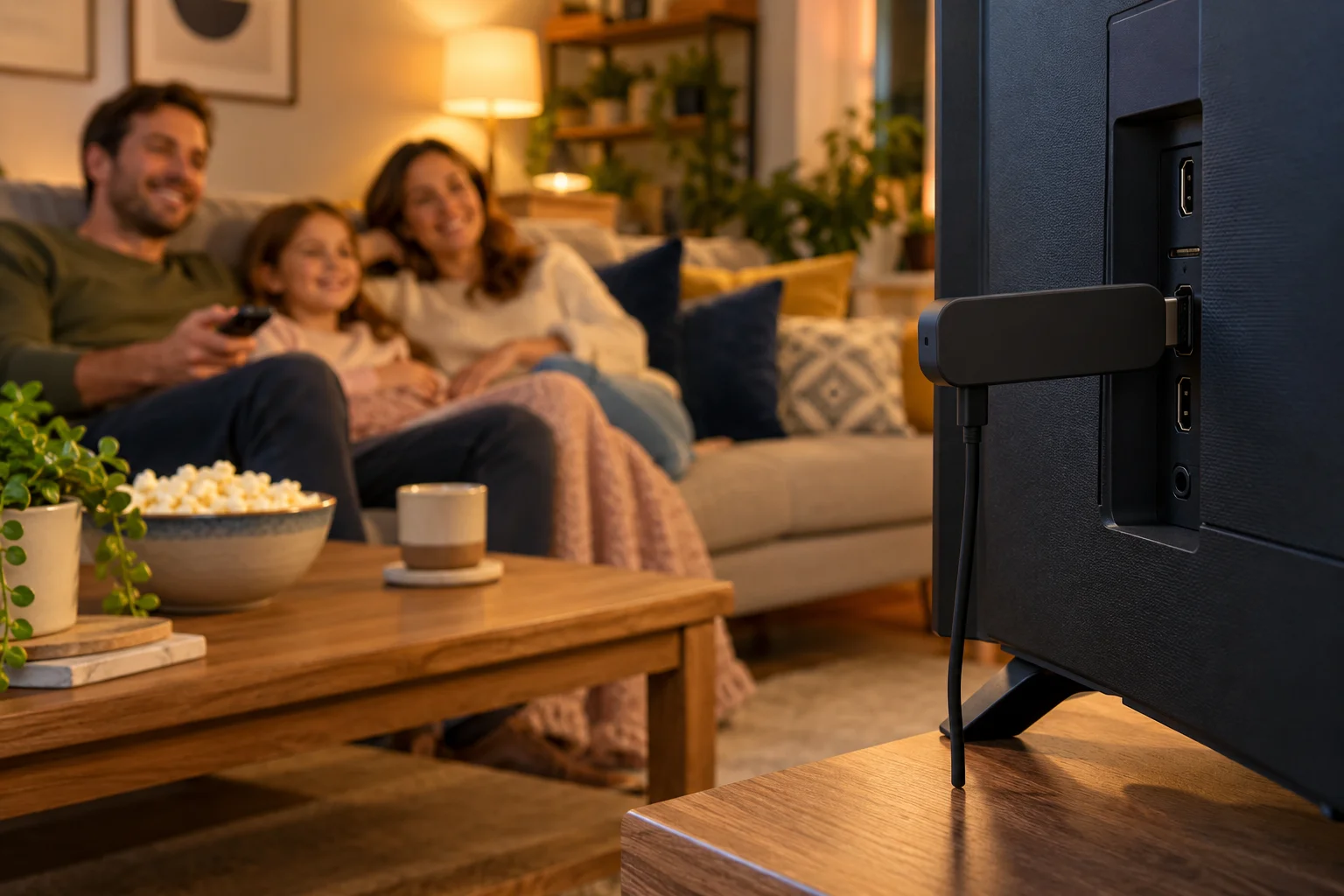
The Fire TV Stick is small, plugs straight into an HDMI port and costs far less than a new smart TV. Even an older television that has no apps of its own becomes a capable streaming screen once a Firestick is attached. That is why searches such as "iptv firestick" and "firestick iptv uk" are so common.
There are a few practical reasons it suits IPTV particularly well:
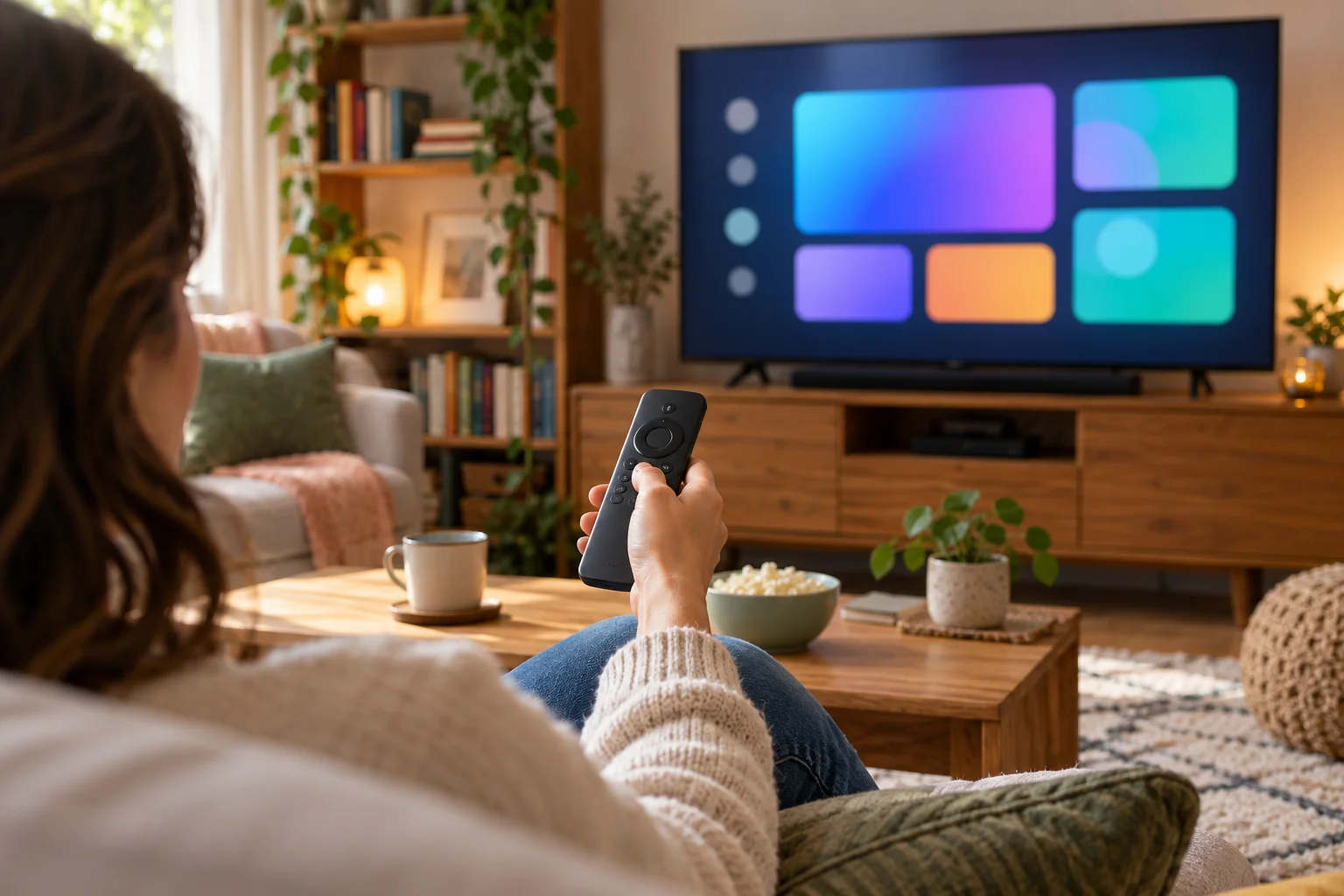
- Simple remote. The Alexa remote that comes in the box is all you need to move around the app, which is important if the whole family will be using it.
- Wide app support. Fire TV runs a version of Android, so many Android apps, including IB Player, work on it.
Which Firestick models work?
IPTV Premium UK works on Firestick and Amazon Fire TV devices in general. If you want 4K streams, you will need a model that supports 4K and a 4K television. Many people search for "iptv for firestick 4k", and the answer is simple: a 4K Fire TV Stick can play 4K where the channel itself offers 4K. Every plan includes Full HD and 4K where the channel supports it, so there is no extra charge for the picture quality.
What you need before you start
Gather these before you begin and the whole job will take about fifteen minutes:
- An Amazon Fire TV Stick connected to your television and to your home Wi-Fi.
- Your Fire TV remote with working batteries.
- An active order with IPTV Premium UK, or at least a plan in mind. You can look at our plans at any time.
- Your phone with WhatsApp, so you can send a quick screenshot later.
If you are not sure about your broadband, a quick check of your speed is worthwhile. Our guide on internet speed for IPTV in HD and 4K explains what to aim for, and the short version is about 10 Mbps for HD and 25 Mbps recommended for 4K.
Step 1: Allow your Firestick to install apps
By default a Firestick is set up to only install apps from the Amazon Appstore. To add the player app, you need to give permission for the Downloader app to install it. The exact wording of menus changes between Fire OS versions, so treat the names below as a guide rather than a fixed script.
- From the Fire TV home screen, go to Settings.
- Choose My Fire TV (on some versions it is called Device & Software).
- Open Developer Options. If you cannot see it, go to About, highlight the device name and press the select button several times until a message says developer options are enabled, then go back.
- Look for the option to install apps from unknown sources, or the per-app setting under Install unknown apps. Switch it on for Downloader once you have installed it in the next step.
This setting simply tells your Firestick that you, the owner, may add apps yourself. Only install from sources you trust, and switch it off again afterwards if you prefer.
Step 2: Install the Downloader app
Downloader is a free app, available from the Amazon Appstore, that works like a very simple web browser and file fetcher for your Firestick.
- Return to the home screen and select the Find or magnifying glass icon.
- Choose Search and type Downloader using the on-screen keyboard or by holding the voice button on your remote.
- Select the Downloader app from the results, then choose Get or Download.
- When it finishes, choose Open.
- The first time it opens, Downloader will ask for permission to access photos, media and files. Choose Allow.
Now go back to Developer Options and make sure the unknown-sources permission is enabled for Downloader. Without this, the next step will stop with a message saying the Firestick is blocked from installing.
A quick note on the code
Downloader lets you type in a short code instead of a long web address. We do not print the code in this article, because the exact code is kept up to date on our installation guide. Open that page on your phone or computer, copy the code carefully and type it into the Downloader box on your TV.
Step 3: Install the IB Player app
This is the moment where you install IPTV on Firestick in practice. With Downloader open and the code from the installation guide entered:
- In Downloader, select the Home tab, click into the address box and type the code exactly as shown on the guide.
- Choose Go. Downloader will fetch the file and show a progress bar.
- When the download completes, an installer screen appears. Choose Install.
- Once it says the app has been installed, you can choose Done or Open.
- Back in Downloader, you will be asked whether to delete the installation file. Choose Delete, then confirm, because you no longer need it and it saves storage.
Where do I find the app afterwards?
Press and hold the home button, choose Apps and scroll to the bottom. Highlight IB Player, press the menu button and choose Move to put it on your home screen's front row.
Step 4: Send us your MAC Address and Device Key
IB Player is recommended by IPTV Premium UK because it is clean, quick and easy to understand. It does not need you to type long login details. Instead, the team links your subscription to your device.
- Open IB Player on your Firestick.
- The first screen displays a MAC Address and a Device Key.
- Take a clear photo or screenshot of that screen. If you cannot take a screenshot on the TV, a steady photo from your phone is perfectly fine.
- Send it to our team on WhatsApp at +44 7446 385834, or via our website chat.
- We add your subscription to that device, usually within a short time, and tell you when to restart the app.
Setup is free, and there is no charge for the help. When it has been activated, close IB Player completely, open it again, and your channel lists, movies and series will load. If you still see the code screen, give it a minute and try again, and then message us.
Step 5: Find your way around once it is working
When the content loads, take five minutes to explore rather than diving straight in. Every plan includes 25,000+ live channels, 140,000+ movies and series and a TV guide (EPG), so there is a lot to browse.
- Live TV. Pick a category such as UK channels, sports, films or kids, then choose a channel.
- Movies and series. Look for the on-demand sections to browse by title or genre.
- TV guide. Use the programme guide to see what is on now and next.
- Favourites. Mark the channels you watch most so you can jump to them straight away.
We cannot promise specific channels here. If there is a particular channel or sporting event you care about, ask support to check it or consider the £5 1-day trial, which lets you test before committing to a longer plan. You can request it through the website chat.
Tips for a smoother Firestick experience
A Firestick is a small device, and a few habits keep it running well.
Use the best possible connection
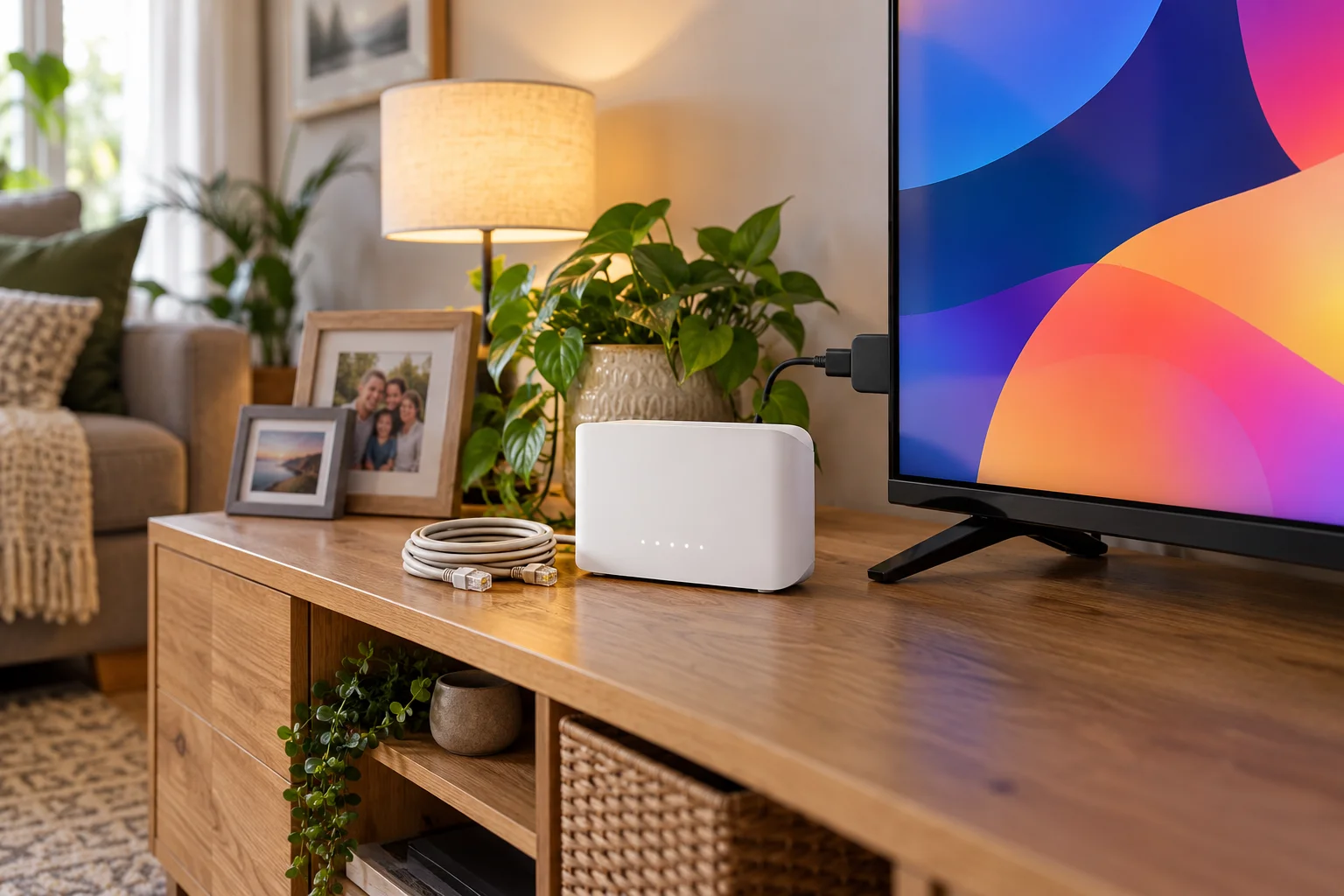
Wired is best, and Amazon sells an Ethernet adapter for Fire TV devices if your model supports one. If you rely on Wi-Fi, sit the router in the same room or at least move it closer. Streaming live sport in particular punishes a weak signal.
Keep the Firestick cool and tidy
Plug it into the short extension lead that comes in the box so it is not squashed against the back of the television, where heat can build up. Restarting the Firestick once a week through Settings, then My Fire TV, then Restart clears a surprising number of niggles.
If buffering appears
Restart the app and your router, move to a cable or closer to the Wi-Fi, and turn off any VPN. Our full guide to fixing IPTV buffering and freezing goes deeper, and support is always there too.
Other apps that work on a Firestick
IB Player is what we recommend and the one we walk new customers through. Other compatible apps include TiviMate, IPTV Smarters, Smart IPTV, SmartOne, GSE Smart IPTV, VLC and Kodi. If you already have a favourite, tell us which app you use and we will help you get it working.
For a comparison of the options, see our overview of the best IPTV player apps. It explains what each app is like to use so you can choose with confidence.
What happens when you order
If you have not yet subscribed, the process is straightforward and has no payment on the website. You choose a plan, enter your name, email and WhatsApp number, and our team sends the payment details and order details by email and WhatsApp, between 5 minutes and 2 hours later. Then you pay, and you can start watching. The plans are:
- 3 Months: £30 (£10 a month).
- 6 Months: £40 (£6.67 a month).
- 12 Months: £60 (£5 a month), the best value, and it includes a free media player.
All plans have the same channels and quality, and there are no contracts or hidden fees. If you want to know who we are, read about us. You can also see what other people say in our reviews. Please also read our Terms of Use and follow the laws that apply where you live. IPTV is simply TV delivered over the internet, and it is your responsibility to use it appropriately.
FAQ
Do I need a special Firestick to use IPTV?
No. Standard Amazon Fire TV Sticks work, and so do other Fire TV devices. For 4K you need a model that supports 4K and a 4K television, and a good internet connection.
Is it safe to turn on developer options?
Turning on developer options simply unlocks extra settings, and allowing installs from unknown sources lets you add apps yourself. Be careful to install only from sources you trust, such as the steps on our installation guide, and you can turn the setting off again when you are finished.
Where do I get the Downloader code?
We do not print it in blog posts, because it can change. You will always find the current code on the installation guide page, along with the full step-by-step instructions.
What is the MAC Address and Device Key?
They are two identifiers shown on the first screen of IB Player that tell us which device to link your subscription to. Take a screenshot of that screen and send it to us on WhatsApp or the website chat, and our team does the rest for free.
Can I use IPTV on more than one Firestick?
That depends on your arrangement with the team and how your subscription is set up. Message support with the number of devices you want to use and we will explain the options clearly before you pay for anything.
Why is my picture buffering on the Firestick?
The most common causes are weak Wi-Fi, a busy router or a VPN. Restart the app and router, use a cable or move closer to the Wi-Fi, switch off any VPN, and if it carries on, send us your device and what you were watching so support can look into it.
Can I get a refund if it does not work for me?
We have a refund policy, which you can read on the refund policy page. If you have any trouble, speak to support first, because most problems are fixed quickly during free setup.
Conclusion
Learning to install IPTV on Firestick is easier than it first appears: allow app installs, add Downloader, install IB Player using the code from the installation guide, and send us your MAC Address and Device Key. From there, IPTV Premium UK takes care of the setup for free, and you are watching UK channels, sport, films and kids programmes on your own television.
Ready to start? Compare our plans and keep the installation guide open while you set up. If you get stuck, contact us on WhatsApp at +44 7446 385834 for friendly help any time of day. If you would like answers to other questions, our FAQs page has plenty more.
Want more guides like this?
Add IPTV Premium UK as a preferred source on Google, so our new articles show up more often in your Top Stories.
Ready to start watching?
25,000+ live channels and 140,000+ movies and series in HD and 4K, with free setup and 24/7 support.