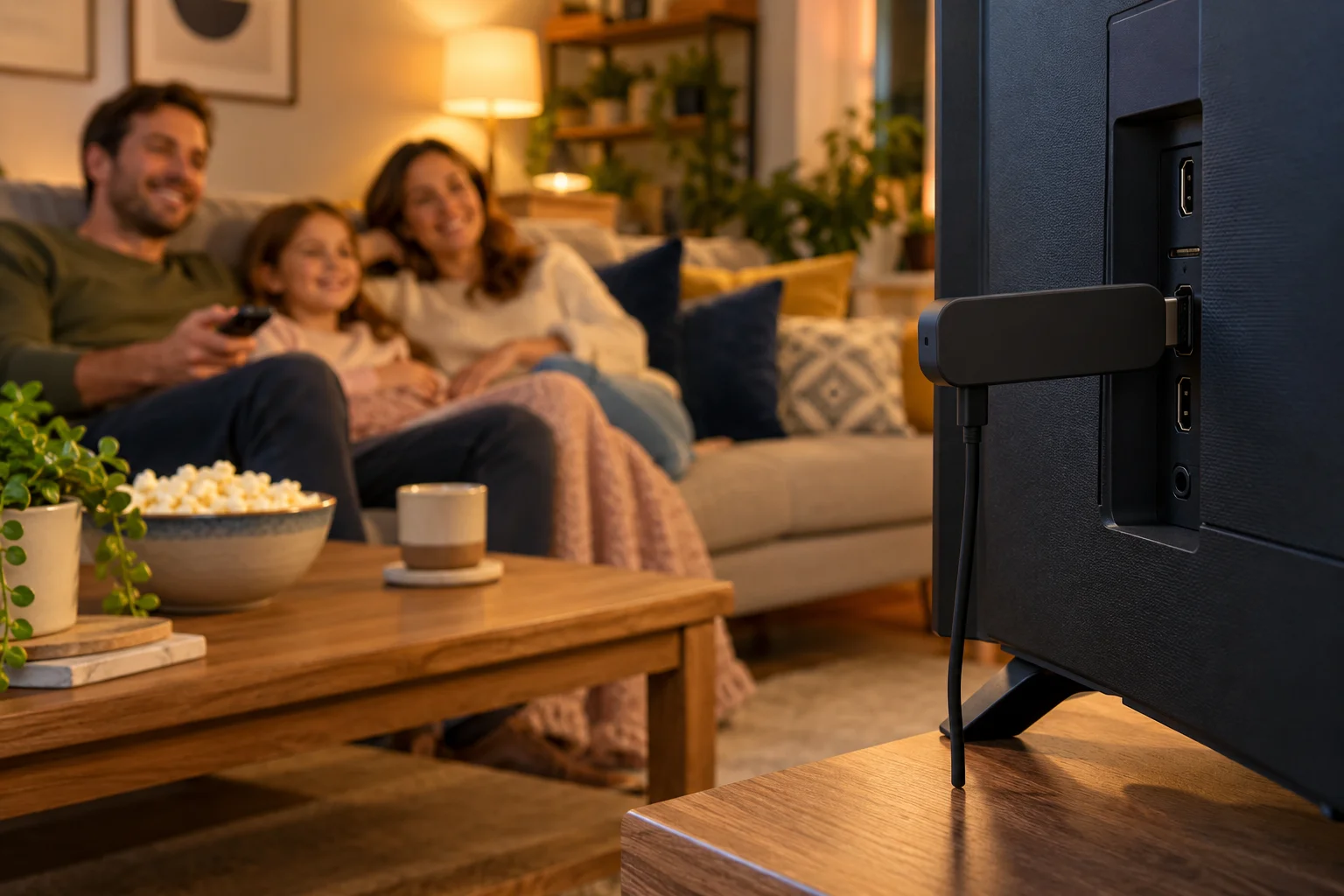
Internet Speed for IPTV: How Many Mbps for HD and 4K UK
How much internet speed for IPTV do you really need? About 10 Mbps for HD and 25 Mbps for 4K. Learn how to test, share bandwidth, improve Wi-Fi and stream on mobile data sensibly.
One of the most common questions before signing up is simple: is my broadband fast enough? The right internet speed for IPTV (a question IPTV Premium UK customers often raise) is lower than many people fear, but it is not the only thing that matters. A line that looks quick on paper can still stutter if the Wi-Fi is weak, the router is badly placed or the whole family is online at once.
This guide gives you the numbers, explains how to test your own connection, and walks through the practical ways to improve a home network. It covers HD and 4K, several devices at once, Wi-Fi versus cable, router placement, mesh systems and watching on mobile data. Everything is written for ordinary UK homes, with no jargon for its own sake.

Key takeaways
- You need about 10 Mbps for HD and about 25 Mbps recommended for 4K for each stream you watch.
- Speeds add up, so a household with several screens in use needs more than one stream's worth.
- A wired connection or strong Wi-Fi matters as much as the headline speed on your broadband bill.
- Run a speed test on the device you watch on, in the room you watch in, at the time you usually watch.
- Router position, Wi-Fi band and a mesh system can fix many problems without paying for a faster plan.
- On mobile data, a lower quality setting and a Wi-Fi-first habit keep both the picture and your allowance healthy.
How much internet speed does IPTV need?
IPTV is television delivered over the internet. Because it is live video, it needs a steady flow of data rather than a big burst. That is why a consistent connection beats an occasionally fast one.
As a guide for each stream:
- HD (Full HD, 1080p): about 10 Mbps.
- 4K: about 25 Mbps recommended.
IPTV Premium UK offers Full HD and 4K where the channel supports it, and the same quality on every plan. That last part is worth underlining: whether you choose 3, 6 or 12 months, you get the same channels and quality, so your speed requirements are the same too.
A few points make those numbers easier to use:
- They are per stream. Two TVs on HD at once need about double.
- Treat them as a comfortable target, not a bare minimum. A little headroom prevents dips.
- Not every channel is in 4K, so you will not need the higher figure all the time.
- Download speed matters most. Upload speed is not the key figure for watching.
HD versus 4K: what changes?
What HD needs
HD is the sensible baseline for most channels and most screens. On a normal living-room TV viewed from the sofa, a good HD picture looks clean, and a connection of about 10 Mbps per stream handles it. Many households can run an HD stream comfortably on a standard fibre or good broadband line.
What 4K needs
4K carries far more detail, so it needs a bigger and steadier flow of data, about 25 Mbps. It also needs a device that can decode 4K smoothly, which includes your TV or streaming box, and a screen that is 4K in the first place. If your device or TV is not 4K, you will not see the benefit, so HD is perfectly good.
Do you need 4K at all?
Not always. A smaller screen, or a picture watched from a distance, may look much the same in HD. If your connection is stretched, choosing HD is a sensible way to keep the stream smooth rather than forcing 4K and suffering buffering. You can try both on the £5 paid 1-day trial to see what your setup handles.
Multiple devices at once
A household rarely uses one screen at a time. The speed you need is the sum of everything running together.
Here is a simple way to work it out:
- List the screens that may be streaming at the same moment, such as the living-room TV, a bedroom TV and a tablet.
- Note whether each one is HD or 4K.
- Add up the figures: about 10 Mbps for each HD stream and about 25 Mbps for each 4K stream.
- Add a little for everyone else's normal use, such as browsing, video calls and downloads.
Example: one 4K TV plus two HD screens comes to roughly 25 + 10 + 10, about 45 Mbps, before anything else. If your line cannot reach that, lower the quality on one or two screens, or avoid starting big downloads during viewing.
Tip: agree some household habits. Pausing console updates and cloud backups during a live match is free and works well. Our guide on how to fix IPTV buffering lists what else may be using your bandwidth.

How to test your internet speed properly
A test takes a minute, and it removes the guesswork.
- Use the right device. Test on the device you watch on if you can, or a phone in the same spot.
- Use the right room. Test where the TV is, not next to the router.
- Use the right time. Test in the evening when most people are online, as well as during the day.
- Run it more than once. Two or three results give a more honest picture than one.
- Look at download speed. Compare that figure with the guide numbers above.
- Test with a cable if you can. If a cable result is much better than Wi-Fi, the Wi-Fi is the weak link.
How to read the results:
- Results well above your needs: the line is probably fine, so look at the Wi-Fi, device or app.
- Results near or below your needs: your connection is the limit, so reduce quality, free up bandwidth or speak to your broadband provider.
- Big differences between rooms: the signal is the problem rather than the broadband plan.
Remember that speed tests show a moment in time. If buffering only happens at certain times, repeat the test then.
Wi-Fi versus Ethernet cable for IPTV
For streaming live TV, wired is the most dependable option. A cable is not affected by walls, interference or neighbours, and it gives a steady connection that suits 4K well.
Why Ethernet wins
- Steadier connection with fewer random dips.
- Not affected by distance from the router.
- A good choice for the main TV, where you watch live sport or 4K.
When Wi-Fi is fine
Wi-Fi is often perfectly good when the signal is strong and the network is not overloaded. For phones, tablets and a bedroom TV near the router, it is convenient and usually enough.
A practical rule
Wire the screen that matters most, and use good Wi-Fi for the rest. If running a cable looks hard, a powerline adapter or a wired access point are options, though results vary with the wiring in your home, so test them before relying on them.
Router placement and Wi-Fi improvements
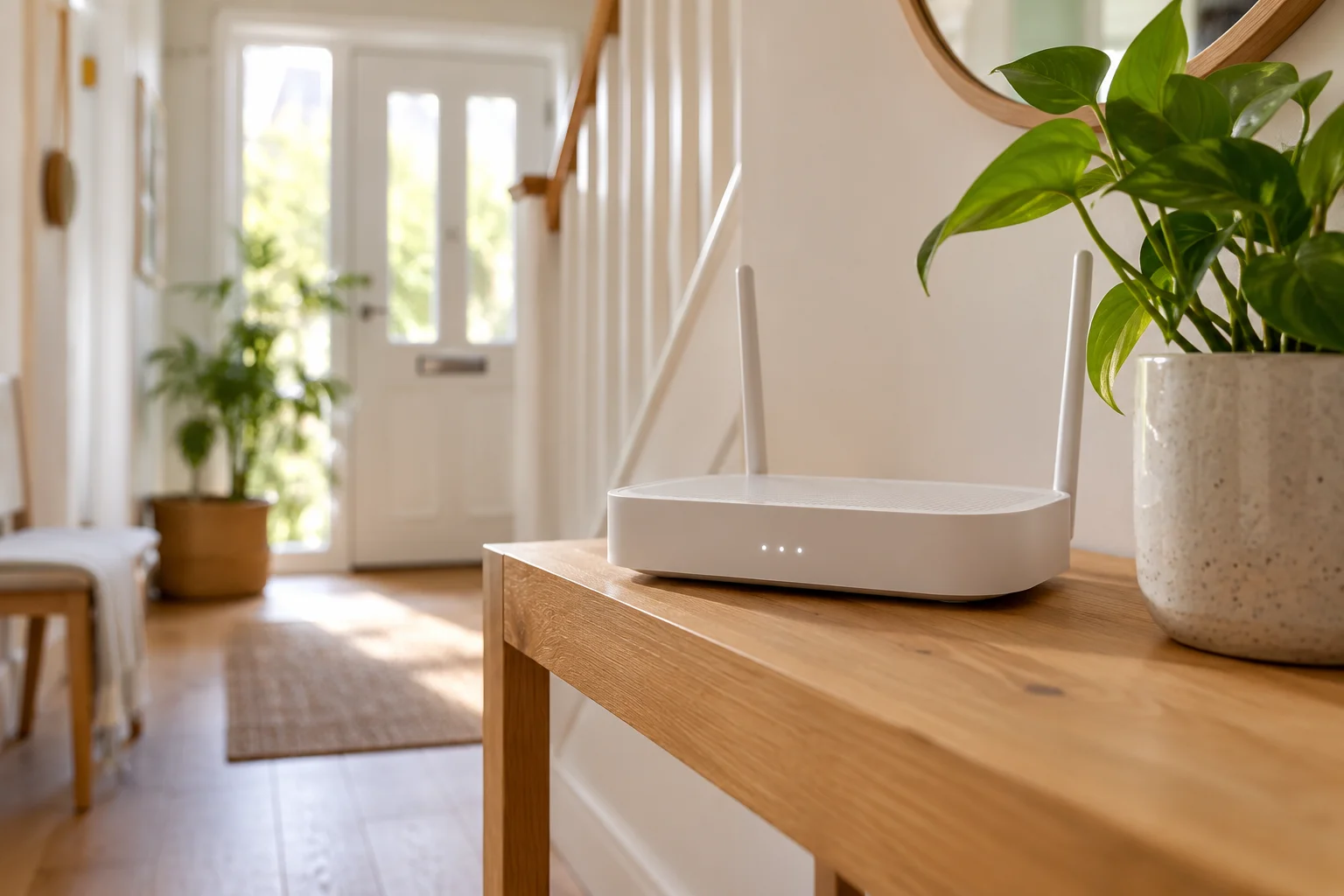
Many Wi-Fi problems are free to fix because they come from where the router sits.
- Raise it and centre it. A shelf in the middle of the home beats the floor in a corner.
- Keep it in the open. Cupboards, TV units and metal objects all weaken the signal.
- Avoid interference. Microwaves, cordless phone bases and baby monitors can disturb Wi-Fi.
- Choose the right band. If your router has 5 GHz and 2.4 GHz, 5 GHz is usually faster at short range, while 2.4 GHz reaches further but is often more crowded.
- Keep it updated and restart it now and then. A restart can clear odd slowdowns.
- Move the device. Sometimes moving a streaming stick or box a metre makes a noticeable difference.
If the Wi-Fi still struggles, a mesh Wi-Fi system uses several units around the home to spread a stronger signal. It is mainly worth considering in larger houses, with thick walls or several floors. Test your current setup first, because a better position can sometimes do the job for nothing.
Fibre broadband and your IPTV needs
Fibre broadband generally gives faster and more stable speeds than older copper lines, so it is a good match for IPTV. If your current line struggles with the figures above, ask your broadband provider what speeds are available at your address.
Some things to remember:
- The advertised speed is a headline figure. What you get in the room is what counts.
- A bigger package is only worth buying if tests show the line is the limit, not the Wi-Fi.
- More households and devices on a connection means you need more headroom, not just more speed.
Our guide on how to choose an IPTV provider also explains what to look for beyond price, including support and how the service behaves on your network.
Watching on mobile data
Many people watch on a phone or tablet when away from home. IPTV can work on mobile data, but video uses a lot of it, so plan accordingly.
- Prefer Wi-Fi when you can. Use home or other trusted Wi-Fi first.
- Choose a lower quality. HD or lower on a small screen looks fine and uses less data.
- Know your allowance. Check your plan and any limits so there are no bill surprises.
- Check your signal. Weak coverage will cause buffering whatever your plan says.
- Be careful on public Wi-Fi. Open networks can be slow and are less private. See IPTV with a VPN for a balanced view.
If you travel in Europe and want to watch, remember that service use should follow the laws where you are and our Terms of Use.
Your speed improvement checklist
- Run a speed test where you watch, at the time you watch.
- Use a cable for the main TV if possible.
- Move the router up, out into the open and closer to the screen.
- Pause large downloads and backups during viewing.
- Choose HD when the connection is stretched.
- Restart the router and the app if things slow down.
- If problems continue, contact IPTV Premium UK support with your device and what you were watching.
Ready to test your own setup
The best proof is your own home. A paid 1-day trial is available for £5 and can be requested through the website chat, which gives you a day to see how your Wi-Fi, device and speed handle live channels before you commit. You can read what others say in our reviews, and setup help is free through chat. The installation guide shows each device step by step.
IPTV Premium UK support is available 24/7 on WhatsApp at +44 7446 385834 and at support@iptvpremiumuk.com, or you can contact us through the website.

FAQ
How many Mbps do I need for IPTV? As a guide, about 10 Mbps for HD and about 25 Mbps is recommended for 4K, per stream. If several screens run at once, add the figures together. A steady wired or strong Wi-Fi connection helps more than a high headline speed.
Can I watch IPTV in 4K on a 25 Mbps connection? That is the recommended figure for a single 4K stream, so it can work well if the connection is stable and nothing else is using it. With several devices, you may need more. Test at your usual viewing time and lower the quality if the picture struggles.
Is Wi-Fi good enough for IPTV? Often yes, if the signal is strong and the network is not crowded. A wired connection is steadier, particularly for 4K or live sport. Try the router closer to the TV, or use a cable, to see the difference.
Do I need fibre broadband for IPTV? Not necessarily, as the key is whether your connection reaches the figures above in the room where you watch. Fibre often makes this easier and steadier. A speed test will tell you where you stand.
Will a mesh Wi-Fi system fix buffering? It can, if weak signal in some rooms is the cause, and especially in larger or multi-storey homes. It will not help if the broadband line itself is too slow. Test first, then decide.
Can I watch IPTV on mobile data? Yes, the apps work on phones and tablets, but video uses a lot of data. Choose a lower quality, use Wi-Fi when you can and check your allowance. A weak mobile signal can still cause buffering.
What should I do if my speed is fine but the picture still buffers? Check the Wi-Fi quality, restart the router and the app, turn off any VPN and look at what else is on the network. Then contact support with your device, the app and what you were watching. The FAQs also cover common issues.
Conclusion
The internet speed for IPTV you need is manageable: about 10 Mbps for HD and about 25 Mbps recommended for 4K, per stream. The way your home network delivers that speed matters as much as the number itself, so test where you watch, use a cable for the main screen, place the router sensibly and share bandwidth wisely.
When you are ready, look at our plans. Then try the £5 1-day trial, or message IPTV Premium UK on WhatsApp for free step-by-step setup help.
Want more guides like this?
Add IPTV Premium UK as a preferred source on Google, so our new articles show up more often in your Top Stories.
Ready to start watching?
25,000+ live channels and 140,000+ movies and series in HD and 4K, with free setup and 24/7 support.