IPTV on iPhone and iPad: UK Setup and Watching Guide
A friendly UK guide to IPTV on iPhone and iPad: install the app from the App Store, send your MAC Address and Device Key, watch away from home and cast to your TV with AirPlay.
Your iPhone is already the device you carry everywhere, so it makes sense to put your television on it too. Watching IPTV on iPhone or iPad is simple: you install an app from the App Store, send us a screenshot of two codes, and our team does the rest for free. Within a short time you can have live channels, films and series in your pocket, on the sofa or on the train.
This guide is written for people in the UK and Europe who are new to the idea. We will cover setup on iPhone and iPad, how to keep an eye on your data, how it works when you are away from home, and a general tip for sending the picture to a bigger TV using AirPlay. IPTV Premium UK offers free setup help over WhatsApp, so you are never left on your own.
Key takeaways
- IPTV works on iPhone and iPad (iOS), and the recommended app is IB Player from the App Store.
- You open the app, take a screenshot of the MAC Address and Device Key and send it to our team for free setup.
- Wi-Fi is best at home; mobile data works too but HD video can use a lot of it.
- Away from home, a stable connection matters more than anything: about 10 Mbps for HD and 25 Mbps for 4K.
- AirPlay and similar casting options can put the picture on a bigger screen, subject to what your TV and app support.
- Support from IPTV Premium UK is available 24/7 by WhatsApp and email.
Why people watch IPTV on an iPhone or iPad
A phone or tablet will never replace a big living room screen, but it does some jobs better. People tell us they like having a second screen for moments when the main TV is busy, and iOS devices are well suited to that.
Common situations include:
- Watching in another room. Someone is on the TV, and you want a different programme in the kitchen or bedroom.
- Commuting and travel. A phone is handy on a train or in a waiting room, when you have Wi-Fi.
- Keeping up with sport. Check a match without being tied to the sofa.
- Children's viewing. A tablet with kids and family programmes keeps little ones entertained, while parents choose what is on.
- A backup. If the main TV is not working, your phone still is.
IPTV Premium UK is family-friendly, with no adult content and a range of kids and family channels. Always set up your own device settings, such as parental controls and screen time, in line with your household's needs.
What you need before you start
- An iPhone or iPad running a reasonably recent version of iOS or iPadOS.
- An Apple ID signed in to the App Store.
- A Wi-Fi connection, because the first setup is easier and cheaper over Wi-Fi.
- WhatsApp or our website chat, to send the screenshot.
- A subscription, or a plan in mind. You can look at our plans at any time.
If you are unsure whether your iPhone or iPad is new enough, check Settings, then General, then Software Update. Our team can also confirm whether your model works if you send us the details.
Step-by-step: IPTV on iPhone
Here is how to complete an iPhone IPTV setup with the recommended app. Menus and screens may look slightly different between iOS versions, so use these as a guide.
- Open the App Store on your iPhone.
- Tap the Search tab and type IB Player.
- Find the app in the results and tap Get. Confirm with Face ID, Touch ID or your Apple ID password.
- When it has downloaded, tap Open.
- On the first screen you will see a MAC Address and a Device Key.
- Take a screenshot by pressing the side button and the volume-up button together (or the home button and side button on older models).
- Open WhatsApp and send the screenshot to +44 7446 385834, or send it through the website chat.
- Wait for our team to confirm that your device has been set up. This is free.
- Close the app completely by swiping it away, then open it again. Your content should now load.
If you cannot find the app, check the spelling, and try again. If it still does not show, contact us with your iPhone model and iOS version and we will help you find a compatible alternative.
Why the MAC Address and Device Key?
Those two codes are how we link your subscription to one specific device without you typing long usernames and passwords. A clear screenshot avoids mistakes. If a character is wrong, the activation will not work, so please do not retype them by hand if you can avoid it.
Step-by-step: IPTV on iPad
The process on an iPad is nearly identical, and the bigger screen is a real bonus for films, series and live sport.
- Open the App Store on your iPad.
- Search for IB Player and tap Get.
- Open the app and note the MAC Address and Device Key.
- Take a screenshot (the top button and volume-up button, or the top button and home button on older iPads).
- Send it to us on WhatsApp or through the website chat.
- Once our team has set it up, restart the app and enjoy.
Some people prefer to use the iPad on a stand in the kitchen, or in bed with the screen at a comfortable angle. An iPad is also easier for younger children to hold, so you may find a family tablet becomes the most-used screen in the house.
Using the app day to day
Once you are in, the experience is much the same on both devices. Every plan includes 25,000+ live channels, 140,000+ movies and series, all sports and PPV events included and a TV guide (EPG).
- Browse categories. Look through groups such as UK channels, sports, films and kids.
- Use the TV guide. See what is on now and next.
- Save favourites. Pick your most-watched channels so they are at the top of the list.
- Turn the device sideways. Landscape mode gives the largest picture.
We do not promise specific channels or sporting rights in this guide. If a certain channel or event matters to you, ask support to check it, or request the £5 1-day trial through the website chat so you can try it before choosing a longer plan.
Wi-Fi vs mobile data
This is the biggest practical question for phone viewing, and the answer is that both work, but they behave differently.
At home on Wi-Fi
- Home Wi-Fi is usually the best choice for a stable picture.
- Sit closer to the router if the picture stutters.
- A busy household with many people streaming at once can slow things down. Our internet speed guide explains how much speed you need.
- About 10 Mbps is enough for HD, and about 25 Mbps is recommended for 4K.
On mobile data
- HD video can use a lot of data. We do not give an exact figure because it varies by channel and quality, but a few hours of viewing can eat into an allowance.
- Check how much data your plan includes before you stream.
- Turn off background app refresh for apps you do not need while watching.
- If your network offers a data saver mode, it may help, though it can also affect picture quality.
Public Wi-Fi
Cafes, stations and hotels often have Wi-Fi, but it can be slow and shared with many users. If the picture keeps stopping, it is probably the network and not your subscription. Mobile data may then be the better option for short viewing.
Watching away from home
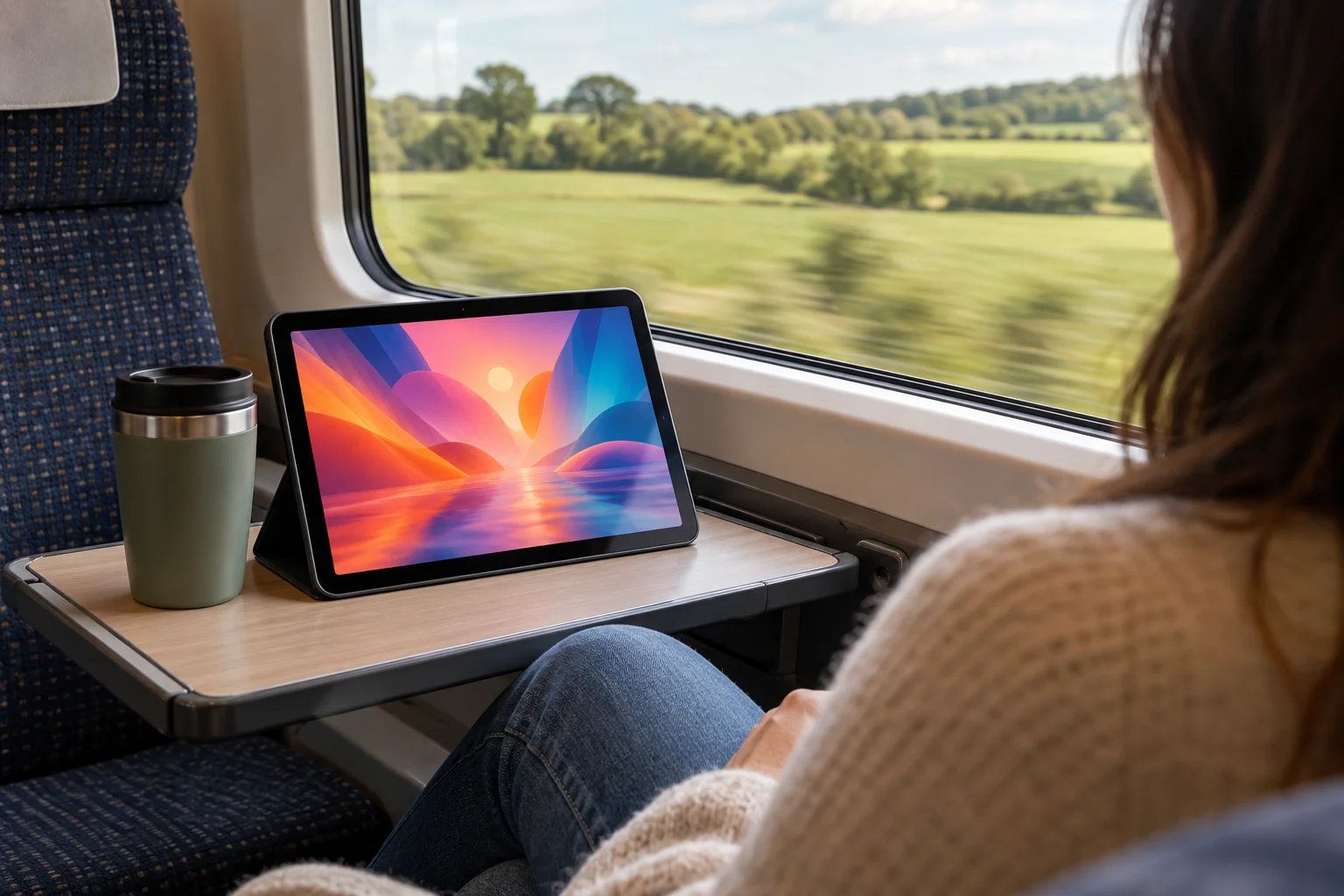
Many people travel in the UK, the Republic of Ireland and the rest of Europe. IPTV Premium UK is aimed at England, the UK, Ireland and Europe, and a phone or tablet is a very easy way to take your viewing with you.
A few practical tips:
- Test before you go. Open the app at home on Wi-Fi and check everything works.
- Check roaming rules. Your mobile network sets the rules and charges for using data abroad, so read them in advance.
- Use hotel or holiday-let Wi-Fi where possible. It saves data, but be ready for slower speeds.
- Charge your device. Streaming video drains the battery, so carry a power bank on long days.
- Turn off any VPN if the picture buffers. A VPN can slow things down, and turning it off is one of the first fixes we suggest.
The Terms of Use set out the rules for using the service. Follow the laws where you live and where you travel.
Casting to a TV: AirPlay as a general tip
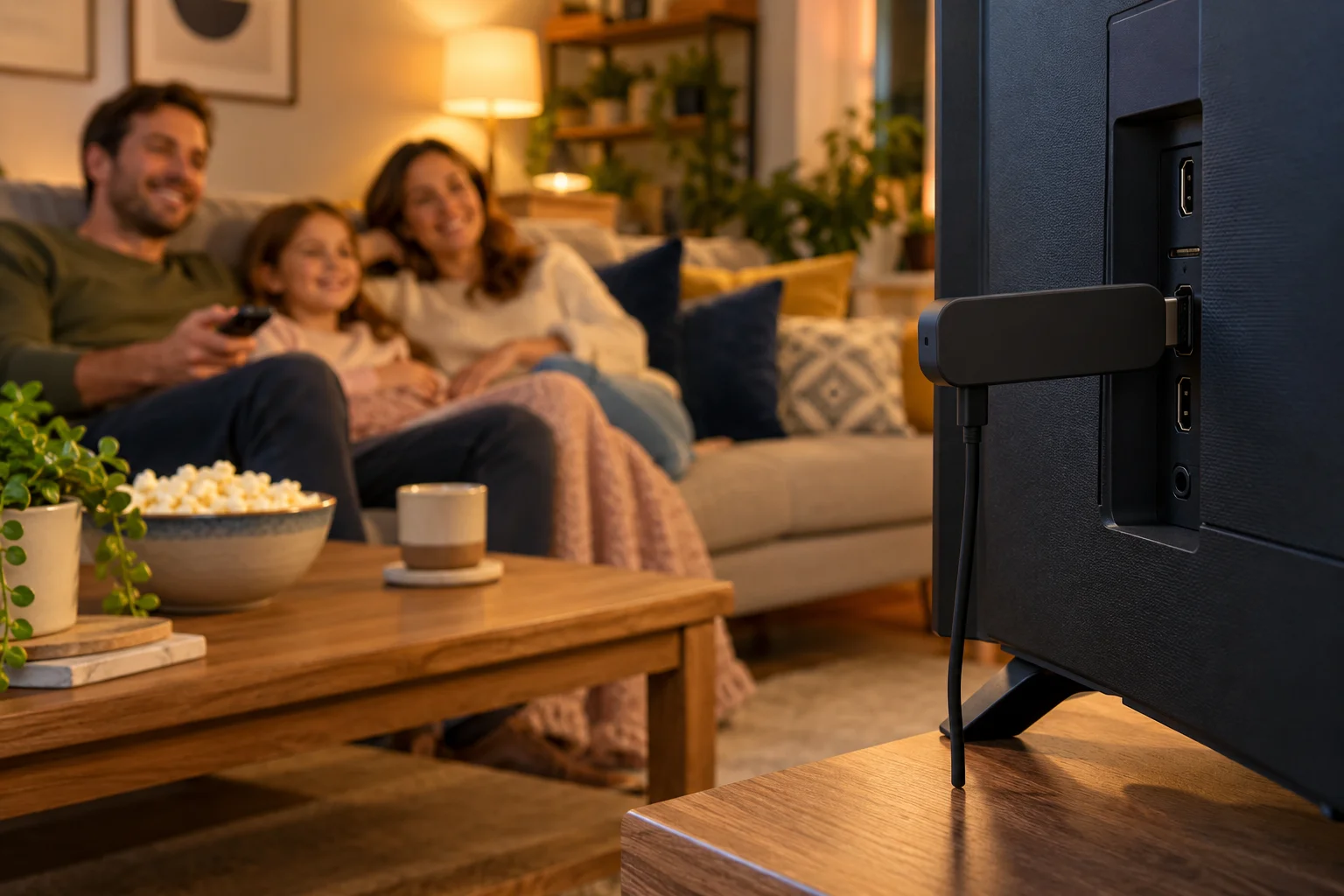
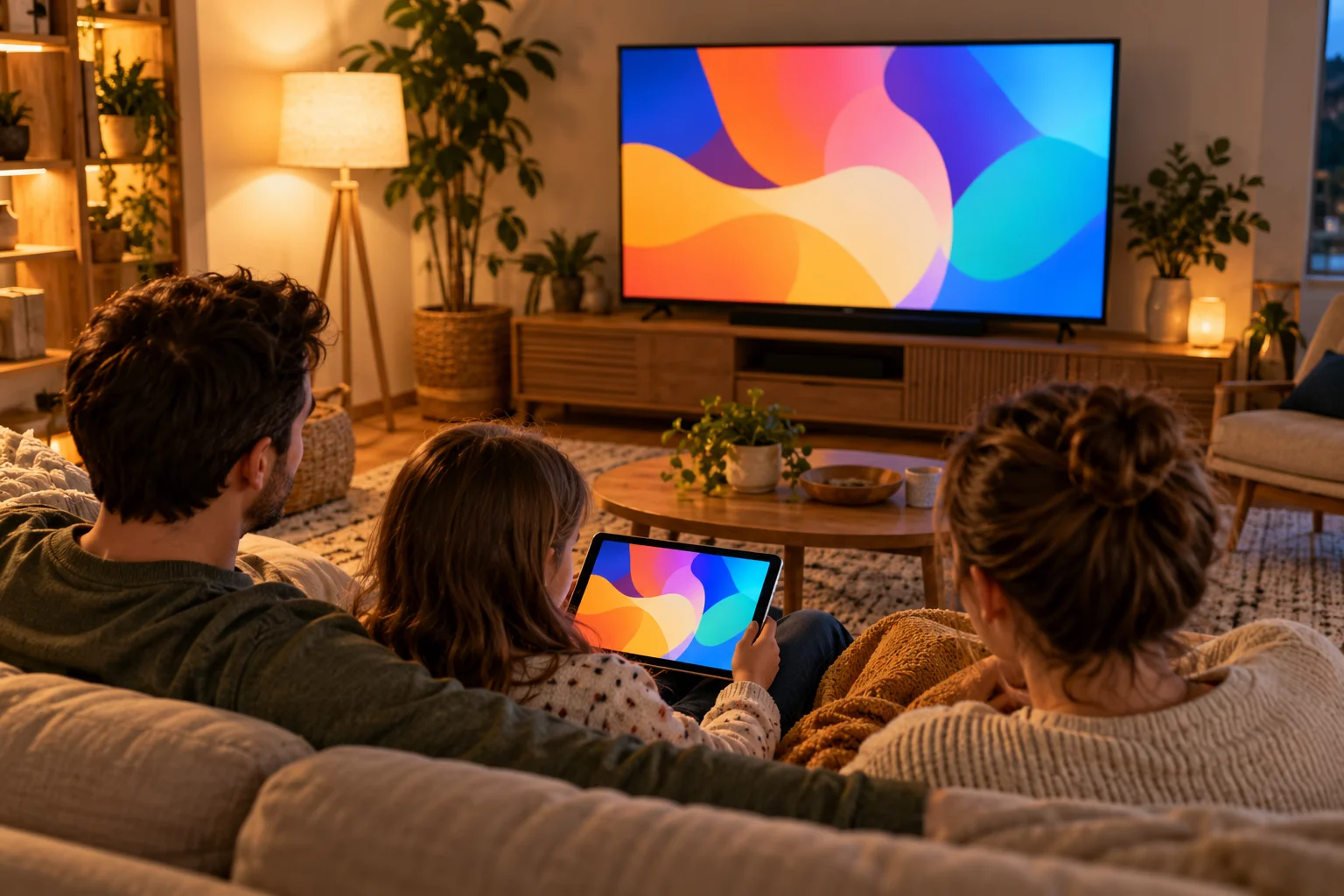
The iPhone screen is small, and sometimes you would like to move the picture to a television. The general idea is called casting or screen mirroring, and on Apple devices it is usually done with AirPlay.
- Make sure your iPhone or iPad and the television are on the same Wi-Fi network.
- Open Control Center by swiping down from the top-right corner (or up from the bottom on older devices).
- Tap Screen Mirroring and choose your TV or Apple device from the list.
- If a code appears on the TV, type it into your iPhone.
Please treat this as a general tip and not a guarantee. Whether your TV supports AirPlay depends on the model, and not every app allows mirroring in the same way. Some people find a direct installation on the television gives a better picture and uses less battery on the phone.
Other options for a big screen are:
- A Samsung or LG smart TV. Our guide to IPTV on Samsung and LG TVs shows how to install the app directly.
- A Firestick or Android box. Both are inexpensive, and our guide to IPTV on Android covers boxes, phones and tablets.
- Apple TV. Apple TV is not on our list of devices, but if you have one, ask our team what works for you or use AirPlay from your iPhone.
Troubleshooting on iPhone and iPad
If something is not right, work through these steps.
- Close the app fully and reopen it.
- Restart your router, and the iPhone or iPad.
- Move closer to the Wi-Fi, or use a different network.
- Turn off any VPN.
- Check you have enough free storage and the latest iOS version.
- Contact support with your device model and what you were watching.
For persistent trouble, our guide to fixing IPTV buffering and freezing is a useful checklist.
How ordering works
You choose a plan on the website and enter your name, email and WhatsApp number. There is no payment on the website. Payment and order details are sent by email and WhatsApp between 5 minutes and 2 hours later. You pay, then start watching, with free setup help on WhatsApp.
The plans are 3 Months at £30 (£10 per month), 6 Months at £40 (£6.67 per month) and 12 Months at £60 (£5 per month), which is the best value and includes a free media player. The channels and quality are the same on every plan, and there are no contracts or hidden fees. If you would like to know more about the company, read about us. To see what customers say, visit our reviews.
FAQ
Can I watch IPTV on an iPhone?
Yes. IPTV works on iPhone and iPad. Download the recommended app, IB Player, from the App Store, open it, and send us a screenshot of the MAC Address and Device Key so our team can set it up for free.
Do I need an iPad as well as an iPhone?
No. One device is enough. An iPad simply gives you a bigger screen, which many people prefer for films and sport, and the setup steps are the same.
Will IPTV use a lot of mobile data?
It can. HD video uses far more data than browsing or messaging, so use Wi-Fi where you can and check your mobile plan before streaming for long periods. Turning off background activity on other apps can also help.
Can I cast IPTV from my iPhone to my TV?
Often yes, using AirPlay or screen mirroring if your TV supports it and both devices are on the same Wi-Fi. This depends on your television and the app, so treat it as a general tip, or install the app directly on a smart TV or Firestick.
Does IPTV work on Apple TV?
Apple TV is not on our list of supported devices. If you own one, message support and ask what would work for you, or use AirPlay from your iPhone or iPad as a stop-gap.
What internet speed do I need on an iPhone or iPad?
About 10 Mbps for HD and about 25 Mbps recommended for 4K. A strong Wi-Fi connection is best, and a slow public network may cause buffering.
What if my picture keeps freezing?
Restart the app and your router, move closer to the Wi-Fi, and turn off any VPN. If it carries on, contact support with your device and what you were watching.
Conclusion
Setting up IPTV on iPhone and iPad takes only a few minutes: download the app, send a screenshot of the MAC Address and Device Key, and let IPTV Premium UK complete the setup for free. After that you can watch at home on Wi-Fi, on the move with a little data planning, or on a bigger screen using AirPlay.
Ready to start? Take a look at our plans and place your order. Our installation guide covers other devices step by step. You can contact us on WhatsApp at +44 7446 385834 at any hour. The FAQs have quick answers to other questions. If you want to know what to expect, our refund policy is available to read.
Want more guides like this?
Add IPTV Premium UK as a preferred source on Google, so our new articles show up more often in your Top Stories.
Ready to start watching?
25,000+ live channels and 140,000+ movies and series in HD and 4K, with free setup and 24/7 support.