IPTV on Android: TV Box, Phone and Tablet Setup Guide
Set up IPTV on Android in the UK: Android TV, boxes, phones and tablets. Install the app from Google Play, send your MAC Address and Device Key, and use our battery and data tips.
Android is probably the most flexible platform for watching TV over the internet. The same family of software runs on set-top boxes, smart TVs, phones and tablets, so once you know the routine, you can use it everywhere. If you are searching for IPTV on Android, the good news is that it is usually the easiest setup of all, because the app comes straight from Google Play and works the same way on every screen.
This guide covers the whole range: Android TV and Google TV sets, Android TV boxes (including the popular Shield-style players), phones and tablets. We will look at installing the app, how to get your subscription linked, the differences between using a remote and using touch, and some practical advice on battery life and mobile data. IPTV Premium UK offers free setup help throughout.
Key takeaways
- Android works on TVs, boxes, phones and tablets, and the recommended app, IB Player, can be installed from the app store on your device.
- You open the app, take a screenshot of the MAC Address and Device Key and send it to our team, who set it up for free.
- On a TV, you navigate with a remote; on a phone or tablet, you use touch, so the experience feels different.
- On a phone, use Wi-Fi where possible, because HD video can use a lot of mobile data.
- Allow about 10 Mbps for HD and 25 Mbps for 4K, ideally wired or on strong Wi-Fi.
- IPTV Premium UK includes 25,000+ live channels, 140,000+ movies and series and a TV guide on every plan.
What counts as an Android device?
The word Android covers an enormous range of hardware, so it helps to sort it into groups. Each group is slightly different to set up and use.
- Android TV and Google TV televisions. Many TVs from various brands have Android built in, with Google Play available on the home screen.
- Android TV boxes. These are small boxes that plug into any HDMI port. Some are premium streaming players, such as the Shield-type boxes people often search for as "iptv shield", and others are cheaper generic boxes.
- Android phones. Any reasonably recent handset with a good screen.
- Android tablets. A larger screen than a phone, ideal for the kitchen, bedroom or travel.
IPTV Premium UK works on Android TV, boxes, phones and tablets. Fire TV sticks also run a form of Android, but they have their own steps, which we cover in our guide to installing IPTV on a Firestick.
Which Android devices are best?
For a main television, a proper streaming box or a TV with Android built in generally gives the smoothest experience. Cheap boxes can work, but some have slow processors, little storage and unreliable Wi-Fi. If you plan to watch live sport in 4K, buy something with a decent processor and, if possible, an Ethernet port.
For phones and tablets, any recent handset with a good battery and plenty of free storage is fine. You do not need a flagship model.
Before you start
- Check that your Android device is connected to the internet.
- Make sure you can sign in to Google Play with a Google account, which most Android devices already have.
- Have WhatsApp ready on a phone so you can send us a screenshot, or use the website chat.
- Choose a plan. You can review our plans whenever you like, and there is a paid 1-day trial for £5 if you would like to test it first.
A quick word about speed. Our internet speed guide goes into detail, but the numbers to remember are about 10 Mbps for HD and about 25 Mbps recommended for 4K.
Setting up IPTV on an Android TV or box
This is how to complete an Android TV IPTV setup using a remote control. Menu names change slightly between versions, so use these steps as a guide.
- From the home screen, open Google Play Store.
- Use the search bar and type IB Player. You can type with the on-screen keyboard or speak into the remote's microphone.
- Select the app and choose Install.
- When it has installed, choose Open.
- The app shows a MAC Address and a Device Key. Take a photo or screenshot of this screen.
- Send the picture to us on WhatsApp at +44 7446 385834 or through the website chat.
- The team sets up your subscription on that device, free of charge.
- Close and reopen the app. Your channels, movies and series will load.
If you cannot find the app on Google Play
Some boxes, particularly cheaper ones, have a limited version of the store or restrict which apps appear. If IB Player does not show up, do not struggle for an hour. Tell us the make and model of your box and we will help. Other compatible apps include TiviMate, IPTV Smarters, Smart IPTV, SmartOne, GSE Smart IPTV, VLC and Kodi, so there is usually a workable alternative.
If you want to compare these, see our overview of the best IPTV player apps, which explains the differences in everyday language.
Setting up IPTV on an Android phone
A phone is the quickest device to set up, because you already have the app store in your hand and can send the screenshot from the same device.
- Open Google Play on the phone.
- Search for IB Player, or the app you prefer, and tap Install.
- Open the app. You will see the MAC Address and Device Key.
- Take a screenshot by pressing the power and volume-down buttons together (the method varies a little by make).
- Open WhatsApp, find our number, +44 7446 385834, and send the screenshot.
- Wait for the team to confirm, then close and reopen the app.
If you are using the same phone for both the app and WhatsApp, you can simply switch between them. There is no need to write anything down.
Setting up on a tablet
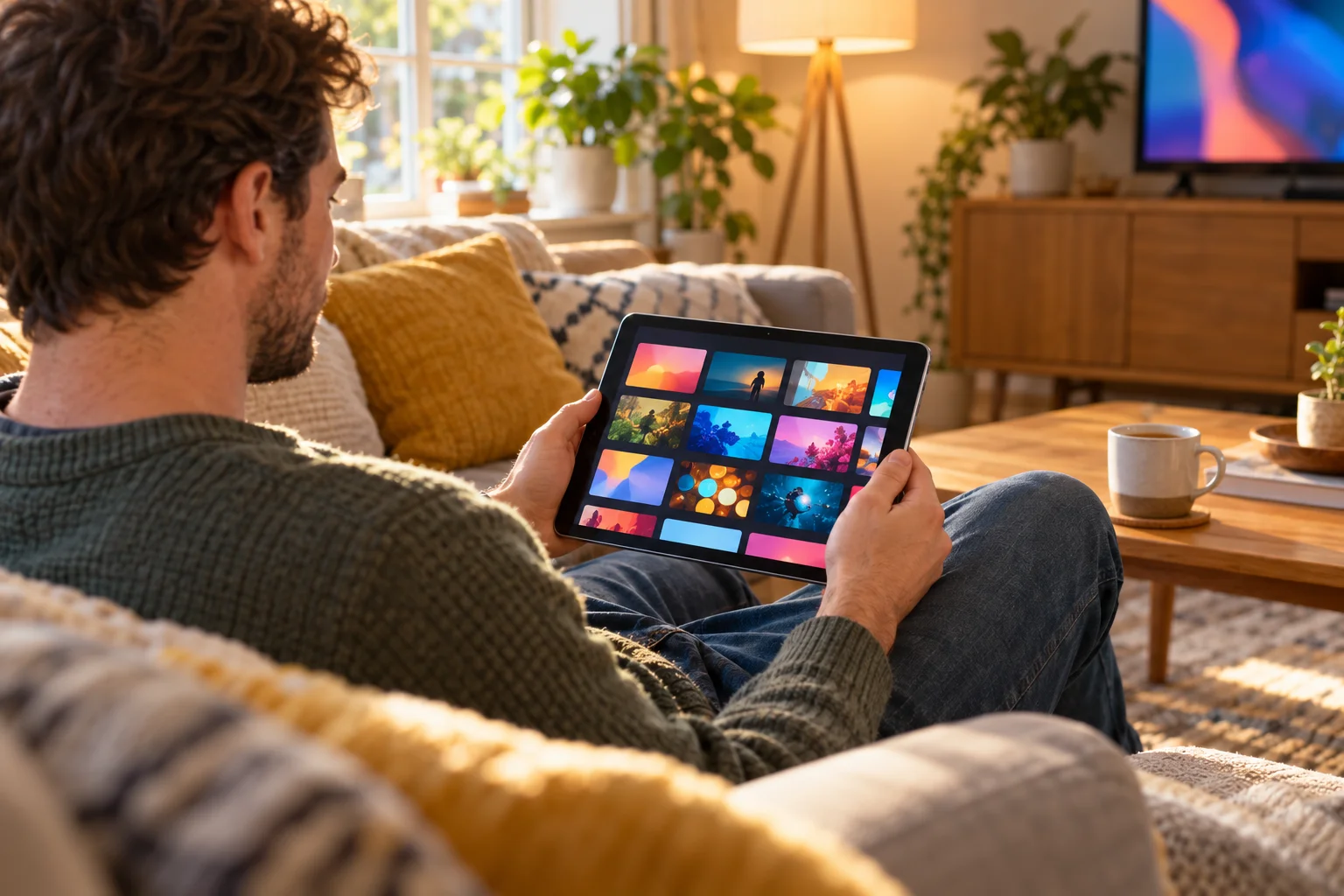
Tablets work in the same way as phones. The advantage is a larger picture, which makes live sport, films and children's programmes much more comfortable than on a small handset. Many families keep an old tablet in the kitchen or on a stand in the bedroom, so someone can watch a programme without taking over the main television.
Remote control or touch: how it differs
The way you use IPTV on Android depends on the device, and it is worth knowing what to expect.
On a TV or box with a remote
- Use the arrow buttons to move between categories and channels.
- The OK or select button opens a channel.
- The back button returns to the list.
- A channel number list or favourites list reduces scrolling.
- Voice search on the remote can help in the store, but not always inside the player.
A tip for large lists: create favourites for the channels you watch every day. With 25,000+ live channels available, scrolling by remote through the full list would be tiring.
On a phone or tablet with touch
- Swipe to scroll through categories.
- Tap a channel to play it.
- Turn the phone sideways to watch in landscape.
- Pinch or double-tap to change the picture size, if the app supports it.
Touch screens are quick for browsing, but the screen is small, and it is easy to tap the wrong thing. Be patient with children and let them use favourites rather than searching.
Using a mouse or keyboard
Some Android boxes support a USB or Bluetooth mouse and keyboard, which can make typing in the store much quicker. This is optional, but it is handy if the on-screen keyboard frustrates you.
Phone tips: battery and mobile data
Watching video is one of the most demanding things a phone can do. A few sensible habits make a big difference.
Protect your battery
- Lower the screen brightness, as the display is the biggest drain.
- Plug in a charger if you plan to watch a long film or match.
- Close other apps running in the background.
- Avoid watching while the phone is hot, for example in direct sunshine or under a pillow.
Watch your data
HD streaming can use a lot of data. We do not quote an exact amount, because it varies by channel and quality, but if you stream for hours over mobile data you can use up an allowance quickly.
- Use home or public Wi-Fi when you can.
- If your app has a quality or resolution setting, lower it on mobile data.
- Check your mobile plan before you stream on holiday, and read your network's rules for roaming.
- Download nothing in the background while you watch.
Getting the best from a TV box
For a main living room, the box matters as much as the app.
- Use a cable if you can. Ethernet is more reliable than Wi-Fi, especially for live sport and 4K.
- Keep it cool. Do not place the box in a cramped cabinet with no airflow.
- Restart weekly. A quick reboot clears small glitches.
- Keep storage free. Delete unused apps and cached data, particularly on cheap boxes.
- Update the software. Both the app and Android itself should be updated from time to time.
If you do hit buffering or freezing, work through the simple steps: restart the app and router, move to a cable or closer to the Wi-Fi and turn off any VPN. For more help, see our guide to fixing IPTV buffering and freezing. If it continues, contact support with your device and what you were watching.
Using Android with other devices in the home
One subscription is often shared across several screens in a household. Because the app is the same on every Android device, the routine is the same, but each device has its own MAC Address and Device Key. If you want to use your subscription on, say, the living room box and a tablet in the bedroom, tell our team when you contact us so we can explain how that works before you pay.
If someone in the family uses an iPhone or iPad, our guide to IPTV on iPhone, iPad and Apple TV shows how they can get set up too.
How to order
If you are new to IPTV Premium UK, ordering is simple:
- Choose a plan on the website.
- Enter your name, email and WhatsApp number.
- Wait for the payment details and order details, which are sent by email and WhatsApp between 5 minutes and 2 hours later.
- Pay as instructed, then start watching.
- Message us for free setup help.
There is no payment on the website itself. The plans are 3 Months at £30 (£10 per month), 6 Months at £40 (£6.67 per month) and 12 Months at £60 (£5 per month), which is the best value and includes a free media player. Channels and quality are the same on every plan. There are no contracts and no hidden fees. You can read more about who we are in about us. Our reviews show what customers say. Please read the Terms of Use too, and follow the laws where you live, because IPTV itself is just television delivered over the internet.
FAQ
Does IPTV work on all Android devices?
It works on Android TV, boxes, phones and tablets. A few very old or very cheap devices may struggle, or may not offer the app in their store, so send us the make and model if you are unsure and we will advise you.
Which app should I use on Android?
We recommend IB Player, because it is simple and our team can set it up for you quickly. Other compatible apps include TiviMate, IPTV Smarters, Smart IPTV, SmartOne, GSE Smart IPTV, VLC and Kodi if you already prefer one of them.
How do I link my subscription to the app?
Open the app, take a screenshot of the MAC Address and Device Key and send it to us on WhatsApp or through the website chat. Our team then sets it up for free, and you restart the app to see your content.
Can I use IPTV on my phone away from home?
Yes, provided you have an internet connection. Wi-Fi is best, and mobile data will work but HD video can use a lot of it, so keep an eye on your allowance and check your network's roaming rules abroad.
Is a cheap Android box good enough?
Sometimes, but quality varies widely. Slow processors, small storage and weak Wi-Fi can cause stuttering even when your internet is fine. If you are buying new, a well-regarded box or a TV with Android built in is usually a safer choice.
What speed do I need for HD and 4K?
About 10 Mbps for HD and about 25 Mbps recommended for 4K. A wired connection or strong Wi-Fi is best, particularly on a main television.
Who do I contact if setup does not work?
Message our team on WhatsApp at +44 7446 385834 or by email at support@iptvpremiumuk.com. Support is available 24/7, and it helps to tell us your device and what you are watching.
Conclusion
IPTV on Android is flexible, quick to set up and works on almost every screen you own, from a living room box to a phone or tablet in your bag. Install the app from Google Play, send us your MAC Address and Device Key, and IPTV Premium UK does the rest for free.
Ready to begin? Choose from our plans and place your order. Our installation guide has step-by-step help for other devices. You can also contact us on WhatsApp at any time. If you prefer to read more first, the FAQs answer many common questions. Our refund policy explains what to expect.
Want more guides like this?
Add IPTV Premium UK as a preferred source on Google, so our new articles show up more often in your Top Stories.
Ready to start watching?
25,000+ live channels and 140,000+ movies and series in HD and 4K, with free setup and 24/7 support.