IPTV on Samsung Smart TV and LG: Step-by-Step UK Guide
Learn how to set up IPTV on Samsung Smart TV and LG webOS using IB Player Pro from the TV app store, send your MAC Address and Device Key, and get free setup help in the UK.
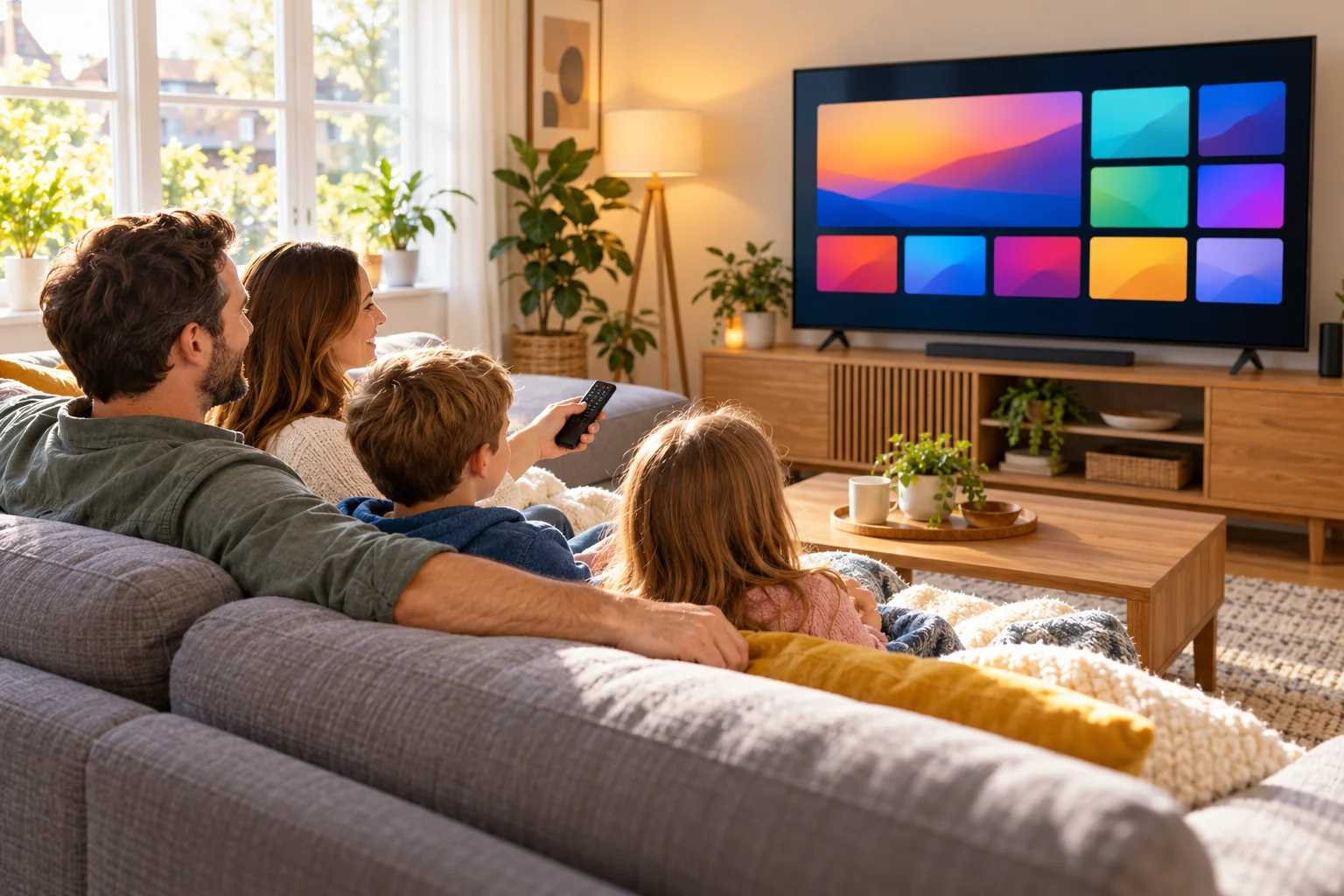
If you own a recent Samsung or LG television, you may not need any extra box or stick at all. Both brands let you add apps directly from the built-in store, which means IPTV on Samsung Smart TV and LG models can be as simple as downloading one app, opening it and sending us a screenshot. No cables, no gadgets, and no technical know-how required.
This guide is written for ordinary households in the UK. We will walk through the Samsung steps, the LG steps, how the MAC Address and Device Key work, and the small tips that make everything run more smoothly. IPTV Premium UK sets the app up for you for free, so the hardest part is finding the app in the store.
Key takeaways
- Samsung (Tizen) and LG (webOS) smart TVs can run IPTV through an app from the TV's own app store.
- The recommended app for both is IB Player Pro, which we suggest on Samsung, LG and Windows.
- You open the app, take a screenshot or photo of the MAC Address and Device Key and send it to our team.
- IPTV Premium UK activates it for you, free of charge, with support available 24/7 by chat.
- A wired connection or strong Wi-Fi matters more than any setting: aim for about 10 Mbps for HD and 25 Mbps for 4K.
- Older TVs may not offer the app, in which case a Firestick or Android box is a simple fix.
Why use the TV's own app instead of a separate box?
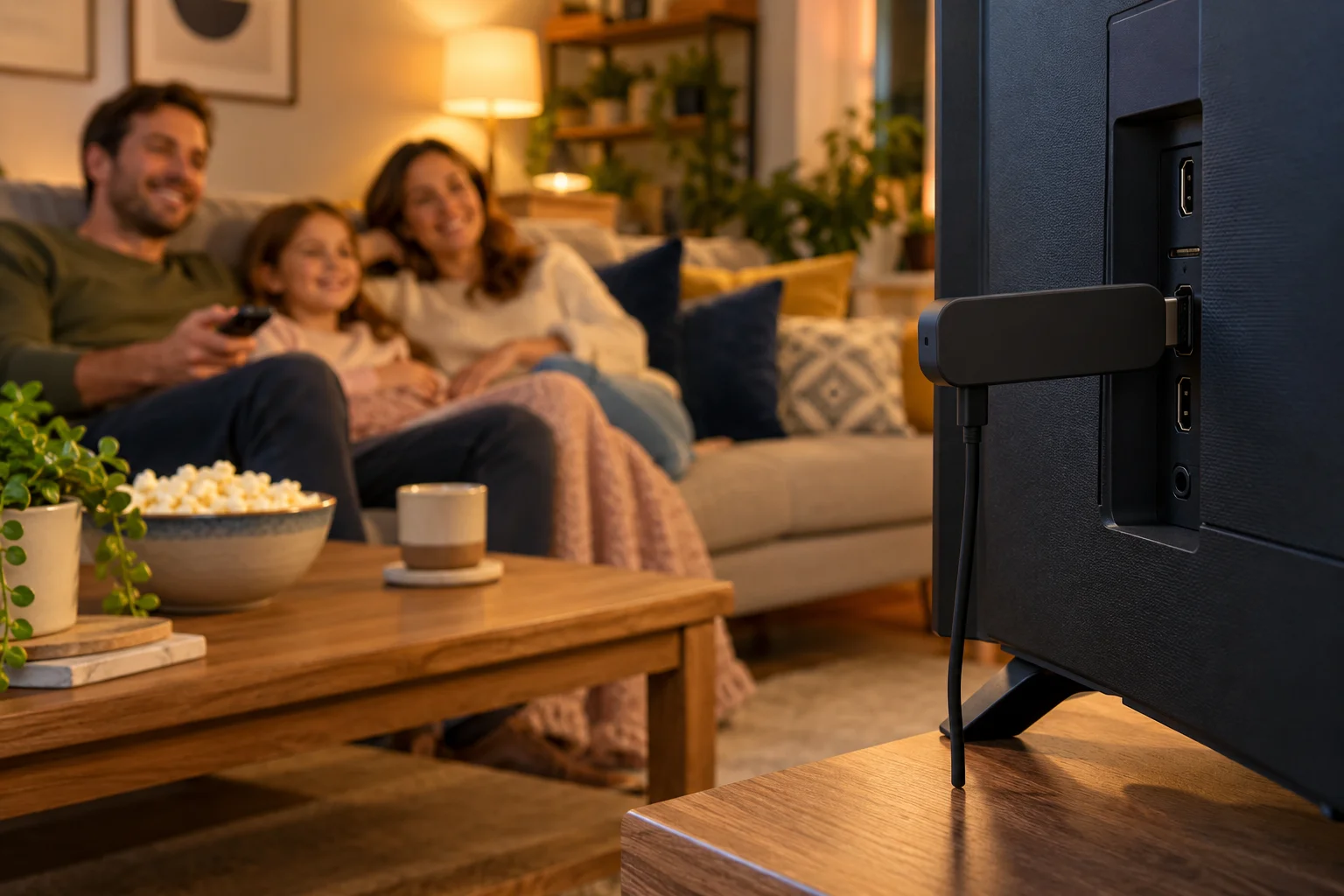
A smart TV already has a processor, Wi-Fi and a remote. Using it for IPTV means fewer plugs, fewer remotes and nothing to hide behind the television. That is a big reason people look up "smart tv iptv app" or "install iptv on smart tv" before buying anything else.
There are some honest trade-offs to bear in mind:
- Convenience. Everything lives in one device, and the TV remote does it all.
- Speed. Built-in processors in older televisions can be slower than a modern streaming stick, so menus may feel a touch less snappy.
- Updates. The TV's software controls which apps are available, so very old sets may not offer the app.
- Flexibility. If your set is too old, a separate device is always an option. Our guide to installing IPTV on a Firestick covers that route.
Check which TV you have
Before you start, it helps to know what your television runs on. In general:
- Samsung smart TVs use the Tizen operating system. You will see the Smart Hub screen with an Apps tile.
- LG smart TVs use webOS. You will see a row of apps along the bottom of the screen and the LG Content Store.
If you are not sure of your model, look at the label on the back of the TV or the About this TV or About page in settings. You can also send us the model number if you want us to confirm the app is likely to be available before you order. We will tell you honestly if a different device would suit you better.
What you need before you begin
- A Samsung or LG smart TV connected to your home internet.
- Your TV remote.
- A phone with WhatsApp, to send the screenshot of your TV screen.
- A subscription from IPTV Premium UK, or a plan in mind. You can look at our plans whenever you like.
If the TV is a long way from your router, think about the connection first. Our article on internet speed for IPTV explains the speeds in plain English, and the short version is about 10 Mbps for HD and 25 Mbps recommended for 4K.
Samsung Smart TV: installing IB Player Pro
This is how to watch IPTV on a Samsung television, using the app store that comes with it. Menu names can differ slightly by year and software version, so treat these steps as a guide.
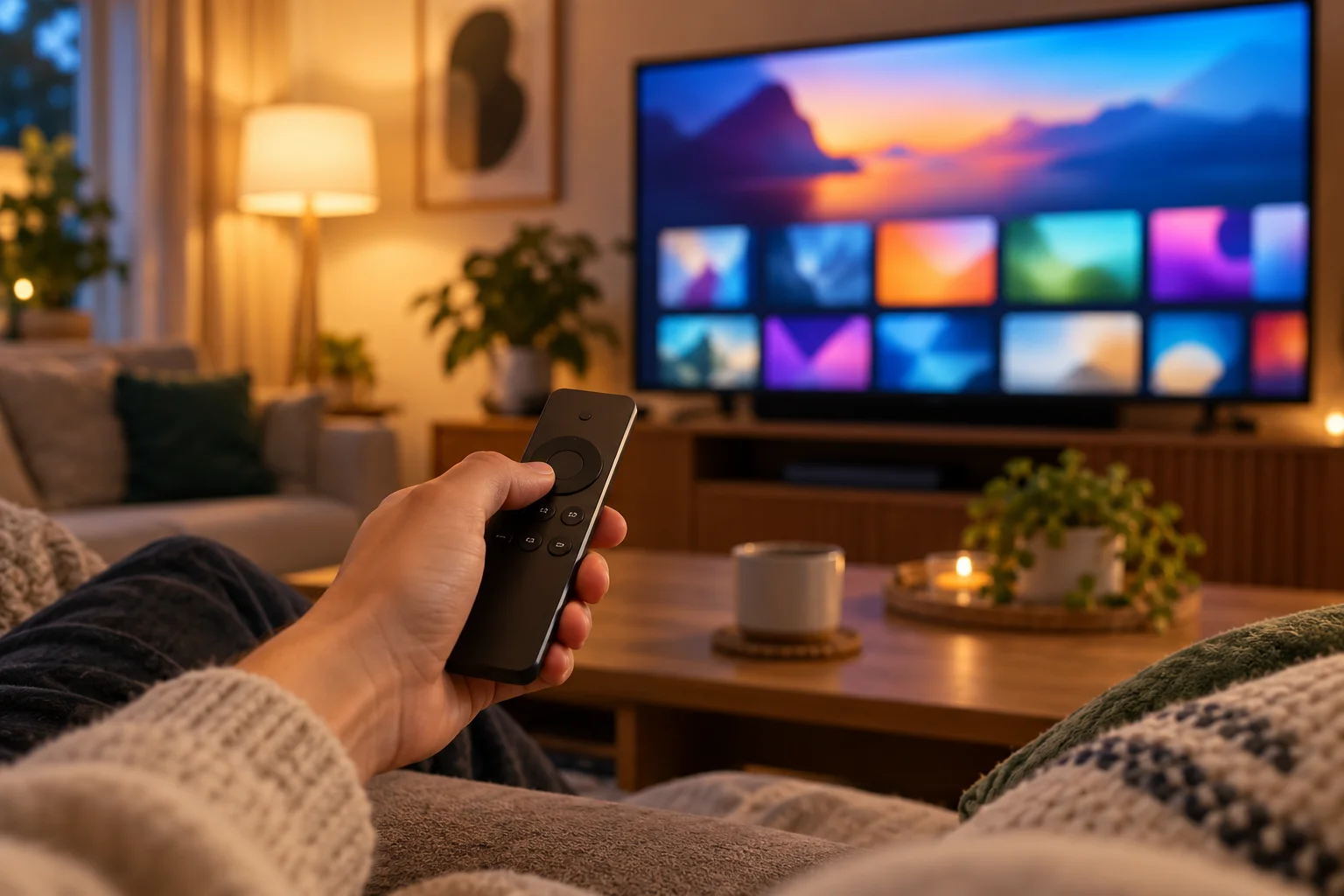
- Press the Home button on your Samsung remote to open Smart Hub.
- Choose Apps from the menu.
- Select the magnifying glass (search) icon at the top right.
- Type IB Player Pro and press Enter.
- Select the app in the results and choose Install.
- When it has installed, choose Open. You can also add it to your home screen so it is one click away.
If you cannot find it, check the spelling and try just "IB Player". If it is still not there, contact us with your TV model and year, and we will tell you what to do next.
Samsung tips
- Make sure the TV software is up to date through Settings, then Support, then Software Update. An out-of-date TV can hide newer apps.
- If installation seems stuck, turn the TV off at the wall for a minute and try again.
- Pin the app to the front of your home bar so you do not need to search again.
LG Smart TV: installing IB Player Pro
On LG televisions the process is almost identical, but you use the LG Content Store instead of Smart Hub.
- Press the Home button on your LG Magic Remote.
- Open the LG Content Store (it may simply appear as an Apps row).
- Choose Apps and use the search icon.
- Type IB Player Pro and select the matching result.
- Choose Install, then Launch when it finishes.
The same rule applies here: wording and layout change between webOS versions, so do not worry if your screen looks a little different from our description. If you have the Magic Remote, you can point and click on the on-screen keyboard or hold the microphone button and speak the name of the app.
LG tips
- Keep webOS updated under Settings, All Settings, General and About This TV.
- If the app is slow, close other apps running in the background.
- Move the app to the front of your launcher bar by selecting and dragging it, so the family can find it easily.
The MAC Address and Device Key explained
Once IB Player Pro is open, you will see two items on screen: a MAC Address and a Device Key. Together they identify your television, rather like a unique reference for that one device. You do not need to type long usernames or passwords.
Here is the simple routine:
- Open IB Player Pro on your television.
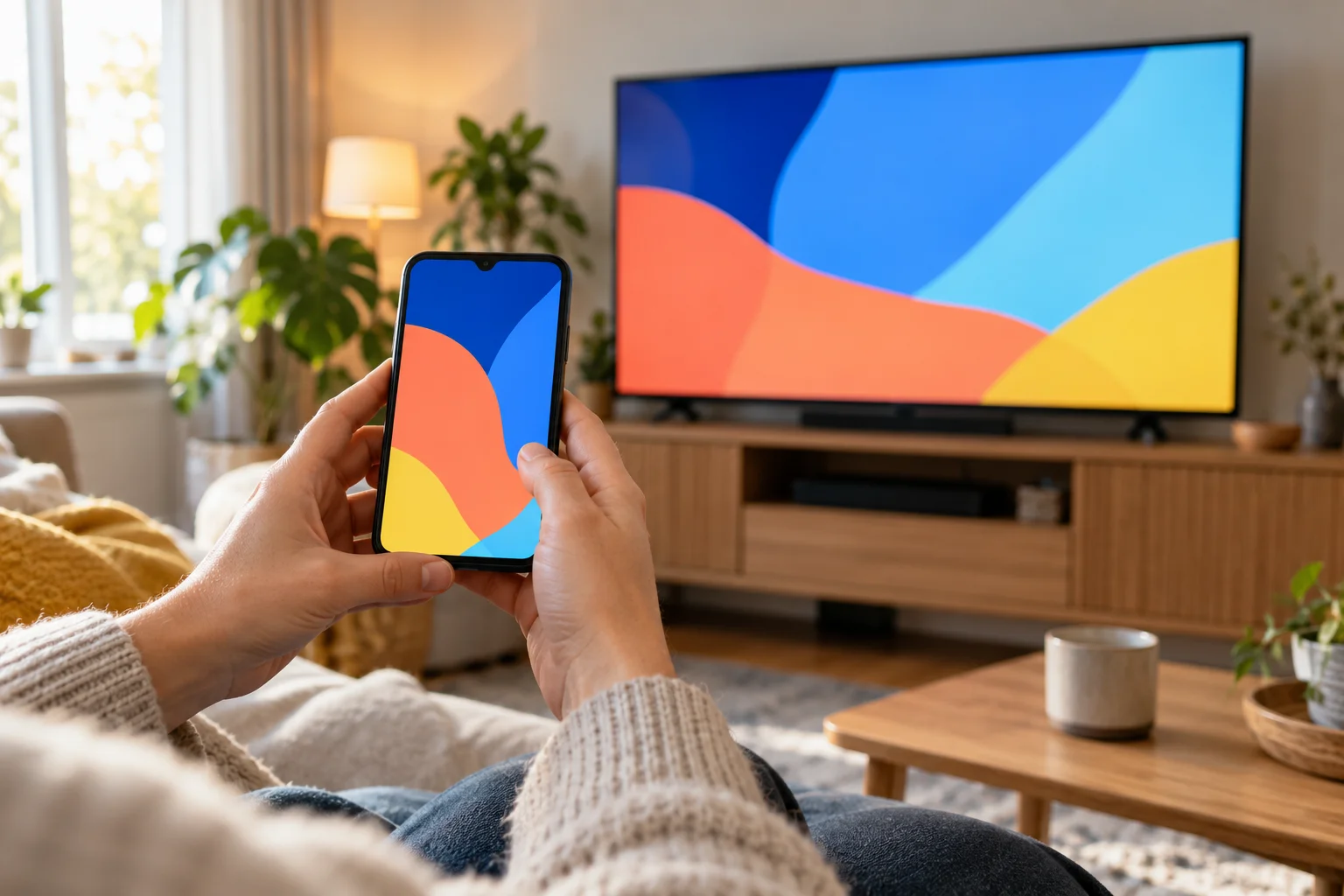
- Take a clear screenshot, or a steady photo with your phone, of the MAC Address and Device Key.
- Send it to our team on WhatsApp at +44 7446 385834, or through the website chat.
- The team sets up your subscription on that device, for free.
- Close the app fully, open it again and your channels should load.
It is worth sending a sharp, well-lit picture. A blurry photo can lead to a typo, and a wrong character in the MAC Address means the activation goes to the wrong place. If you would like a second pair of eyes, contact us and we will happily double-check it with you.
What to do once it is working
When the playlist loads, spend a few minutes getting comfortable. Every plan includes 25,000+ live channels, 140,000+ movies and series, all sports and PPV events included and a TV guide (EPG), so there is plenty to explore.
- Browse by category. Start with groups such as UK channels, sports, films and kids.
- Use the TV guide. The programme guide shows what is on now and next, which beats scrolling endlessly.
- Make favourites. Mark the channels you watch every day and they will be at the top.
- Watch on-demand titles. Movies and series can be browsed separately from live TV.
We do not name specific channels or sporting rights in articles, because that would be a promise we cannot always keep. If something particular matters to you, ask support to check it, or request the £5 1-day trial through the website chat so you can see it for yourself first.

Getting the best picture and sound
A smart TV gives you a lot of control, and a few quick adjustments often help.
Picture mode
Try Movie or Standard picture modes for films, and Sport or Standard for live matches. Very heavy motion smoothing options can make live sport look unnatural, so experiment and keep whatever looks best to you.
Wired is better
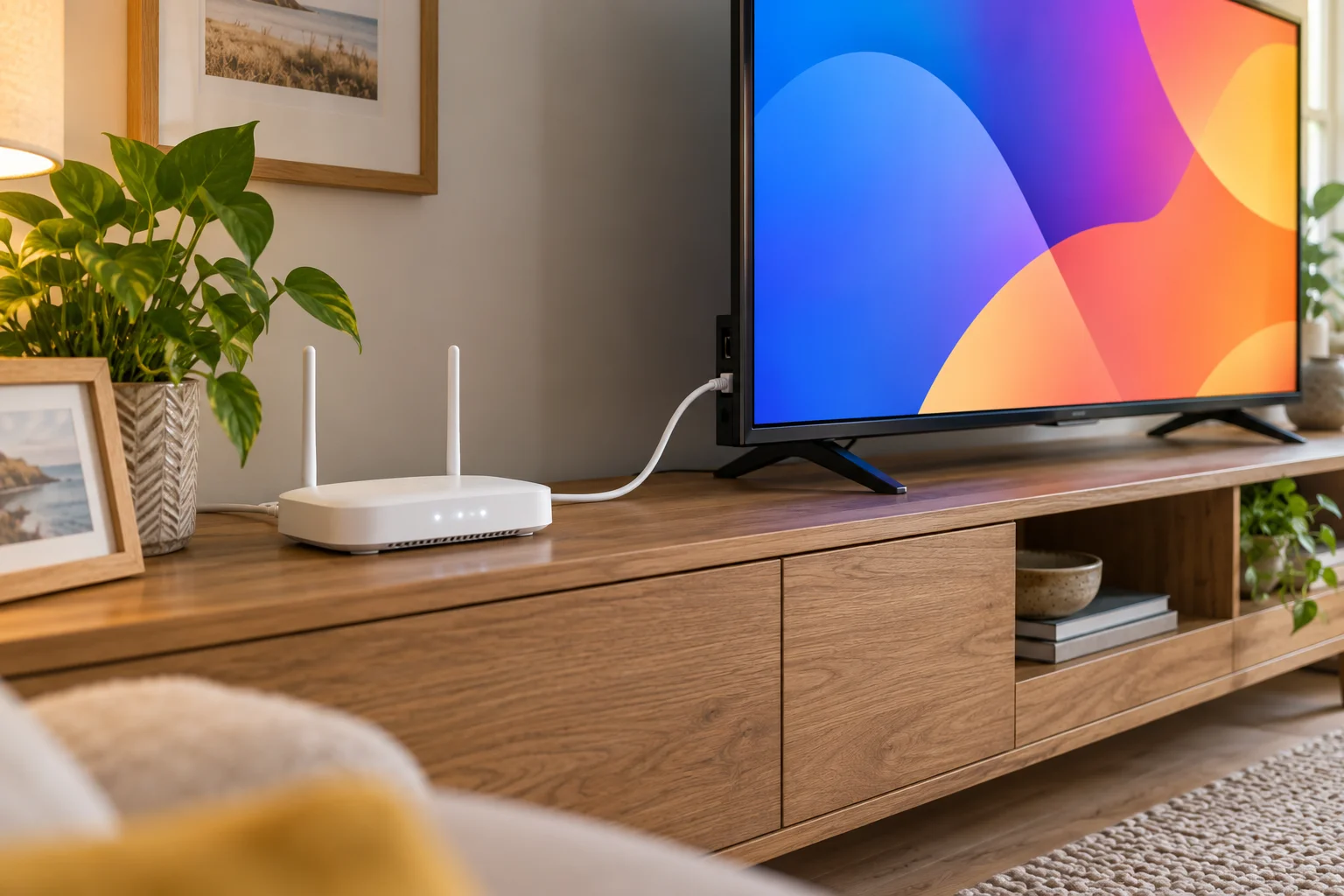
If your television has an Ethernet port and your router is nearby, a network cable is the most reliable choice. If you must use Wi-Fi, move the router closer, or consider a powerline adapter. This single change solves most of the problems we see.
Sound
Smart TV speakers are small. If you have a soundbar connected through HDMI ARC, check that it is set up properly so you get the full audio for sport and films.
4K
If you have a 4K television, IPTV Premium UK offers 4K on channels that support it. Every plan includes Full HD and 4K where the channel supports it, so you do not pay extra for it. You will still need about 25 Mbps for a smooth 4K stream.
If the app is missing or will not open
Not every television is the same, so here is a short checklist:
- Update the TV software and restart the TV.
- Search again using both "IB Player Pro" and "IB Player".
- Check that the date and time on the TV are correct, as wrong settings can stop apps from loading.
- Make sure the TV is connected to the internet by testing another app.
- Contact support with your TV brand, model and what you see on screen.
If your TV is too old to run the app, you have other options. Other compatible apps include Smart IPTV, SmartOne and others, depending on your television. For a neutral comparison of what is out there, our guide to the best IPTV player apps is a good start, and our team can recommend what works on your set.
How ordering works
If you have not subscribed yet, here is the process. You pick a plan on the website and enter your name, email and WhatsApp number. There is no payment on the website. Payment and order details are sent by email and WhatsApp, between 5 minutes and 2 hours later. You then pay and begin watching, with free setup help on WhatsApp.
The plans in pounds sterling are:
- 3 Months: £30 (£10 per month).
- 6 Months: £40 (£6.67 per month).
- 12 Months: £60 (£5 per month), the best value, including a free media player.
Channels and quality are the same on every plan. There are no contracts and no hidden fees. For background on the company, see about us. You can also read what other customers say in our reviews. Please also read the Terms of Use and follow the laws where you live. IPTV is simply TV delivered over the internet, and it is up to each viewer to use it responsibly.
FAQ
Can I get IPTV on a Samsung Smart TV without extra hardware?
Often yes. Many Samsung smart TVs let you install IB Player Pro from the TV app store, then you send us the MAC Address and Device Key for activation. Older models may not offer the app, and in that case a Firestick or Android box is a simple alternative.
Does IPTV work on LG webOS televisions?
Yes, LG smart TVs running webOS can use IB Player Pro from the LG Content Store. The setup is the same: open the app, send us a screenshot of the MAC Address and Device Key, and our team activates it for free.
What if I cannot find IB Player Pro in the app store?
Try searching for IB Player on its own, update your TV software and restart the set. If it still does not appear, send us your TV brand and model and we will advise on the best alternative app or device.
Do I need to pay for the setup?
No. Setup help is free via chat, and support is available 24/7. You only pay for your subscription once you have received the payment details after ordering.
How fast does my internet need to be?
About 10 Mbps is enough for HD, and we recommend about 25 Mbps for 4K. A wired connection or strong Wi-Fi gives the most stable picture, especially for live sport.
Why does my TV buffer when other devices are fine?
Televisions often sit furthest from the router, where Wi-Fi is weakest. Restart the app and router, use a cable or sit closer to the Wi-Fi, and turn off any VPN. If it carries on, tell support which TV you have and what you were watching.
Is there a family-friendly option?
Yes. The service is family-friendly, with no adult content, and there are kids and family channels. If you want to test the experience first, the £5 1-day trial is available through the website chat.
Conclusion
Setting up IPTV on Samsung and LG televisions is mostly a matter of finding IB Player Pro in your TV's app store, opening it, and sending a clear picture of the MAC Address and Device Key. IPTV Premium UK handles the rest, free of charge, so you can get on with watching UK channels, sport, films and kids programmes.
When you are ready, look at our plans and pick the length that suits you. The installation guide has more device steps. The FAQs give quick answers. Or message us on WhatsApp at +44 7446 385834. If anything does not go to plan, our refund policy is there to read and the team is on hand at any hour.
Want more guides like this?
Add IPTV Premium UK as a preferred source on Google, so our new articles show up more often in your Top Stories.
Ready to start watching?
25,000+ live channels and 140,000+ movies and series in HD and 4K, with free setup and 24/7 support.