IPTV on MAG Box, Windows PC and Mac: Simple Setup Guide
Set up IPTV on a MAG box, a Windows PC or a Mac. Find your MAC address, share it with support, enter the portal details and use the Microsoft Store or Mac App Store apps with confidence.
Not everyone watches IPTV on a Firestick or a smart TV. Plenty of households still use a dedicated set-top box in the lounge, and plenty of people simply want to watch on the laptop or desktop they already own. This guide covers three set-ups: IPTV on MAG box devices, a Windows PC and a Mac. For each, you will find what you need, the steps to follow and when it is the right choice.
IPTV Premium UK works on all devices and IPTV apps, including MAG boxes, Windows PC and Mac, and our setup help is free. Whichever route you choose, the idea is the same: you get the device or app ready, send us the identifying details, and we set it up for you.
Key takeaways
- A MAG box is a dedicated set-top box. You find its MAC address in the settings, send it to us, and we share the portal details to enter.
- On Windows, use an IPTV app from the Microsoft Store. IB Player Pro is our recommended app for Windows.
- On a Mac, use an IPTV app from the Mac App Store, such as IB Player.
- For apps, you send a screenshot of the MAC Address and Device Key and we set it up for free.
- About 10 Mbps is enough for HD and 25 Mbps is recommended for 4K, and a cable is best.
- Support is 24/7 on WhatsApp and by email if you get stuck.
Which set-up is right for you?
Before diving into the steps, it helps to compare the three options in plain terms.
- MAG box: best if you want a simple, dedicated box connected to a TV, with no apps to install and no distractions.
- Windows PC: best if you have a desktop or laptop connected to a monitor or TV, or you want to watch while you work.
- Mac: best if you are in the Apple ecosystem and want to watch on a MacBook, iMac or Mac mini.
All three give you access to the same service. Every plan includes Full HD / 1080p, and 4K where the channel supports it, 25,000+ live channels, 140,000+ movies and series, all sports and PPV events, a TV guide (EPG), and 24/7 support. There is no difference in channels or quality between plans, so you can pick the 3, 6 or 12 month plan that suits you from our plans.
If you are still deciding between devices in general, you may also like our guide to the best IPTV player apps, which compares the common apps in plain language.
IPTV on a MAG box
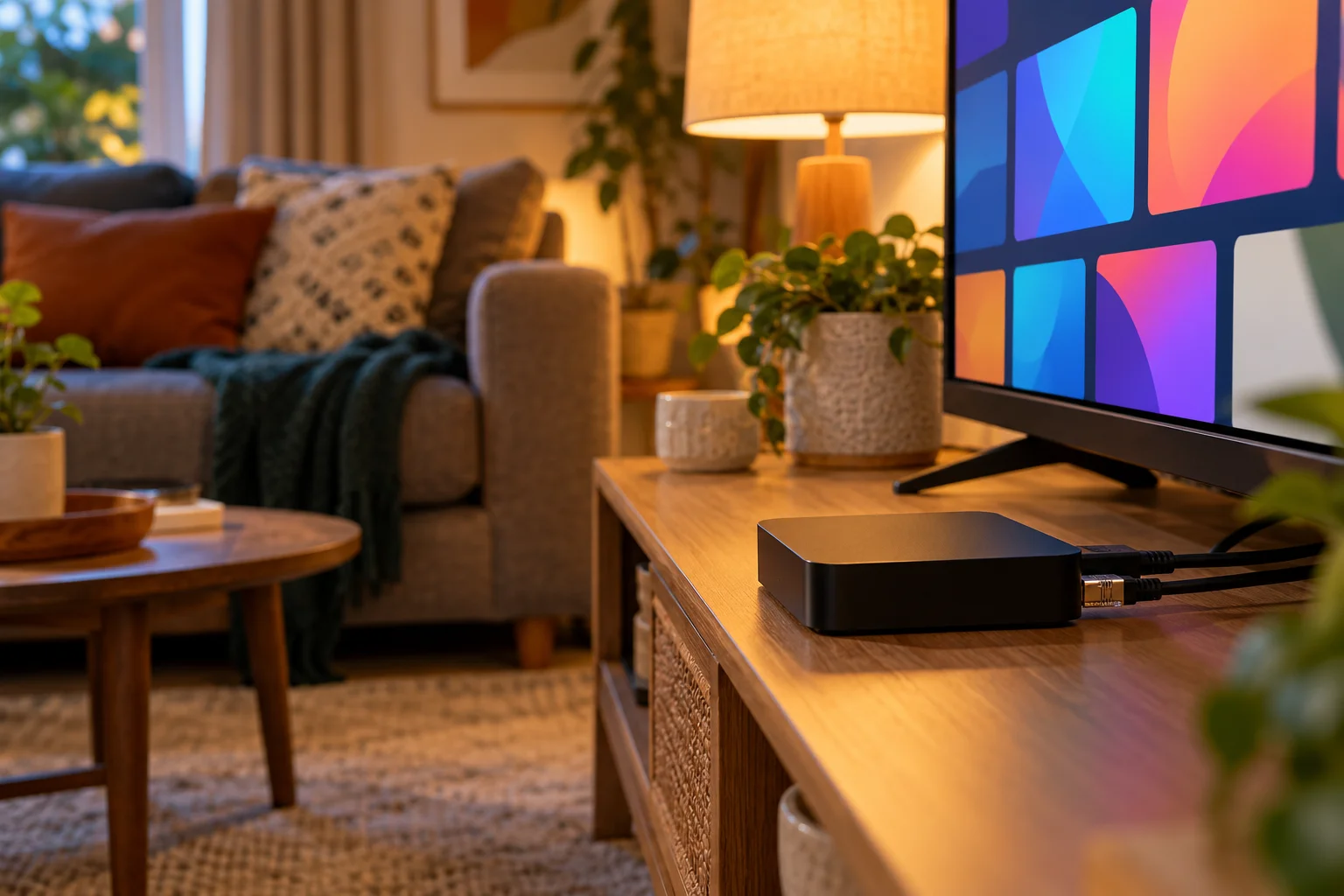
A MAG box is a small set-top box made specifically for IPTV. Models you may come across include the MAG 250 and MAG 322. If you search for MAG 322 IPTV or MAG 250 IPTV, you will find that the set-up logic is similar across the family: connect it, find its MAC address, and enter a portal address.
What you need
- A MAG box with its power supply
- An HDMI cable (or the lead supplied) and a TV
- A network cable or Wi-Fi, depending on your model
- An active order with IPTV Premium UK
- A phone with WhatsApp for sending the MAC address
Step 1: connect the box
- Plug the MAG box into the TV with an HDMI cable.
- Connect it to your router using a network cable if you can. If your model supports Wi-Fi, connect it in the network settings.
- Power it on and let it start up.
Step 2: find the MAC address
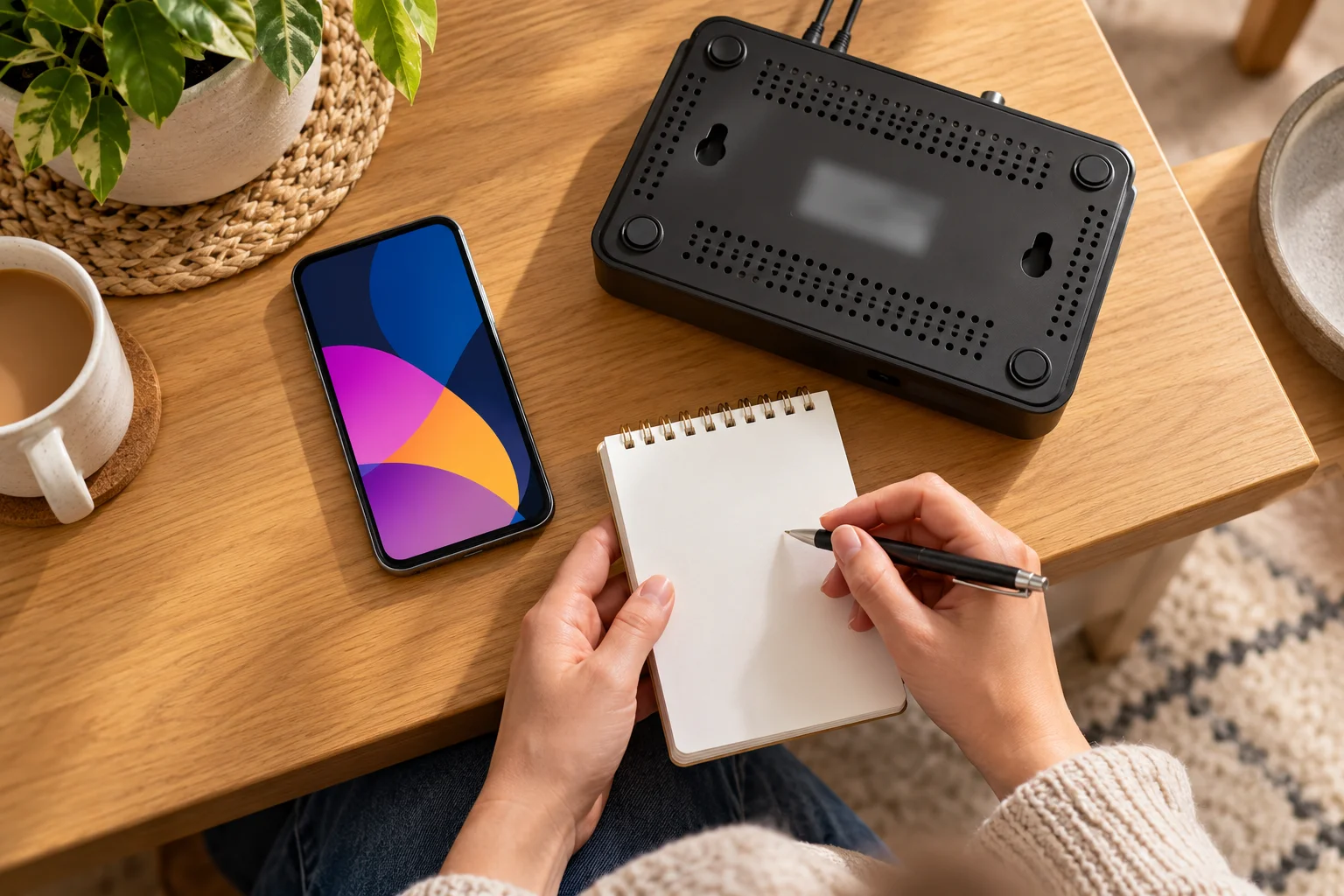
Every MAG box has a unique MAC address, which is a code made of letters and numbers. This is how we identify the box.
- Open the Settings menu on the MAG box.
- Look for the device or equipment information section.
- Find the line showing the MAC address.
- Take a photo or write it down carefully, including every character.
The MAC address is often also printed on a sticker on the back or underside of the box. If the two do not match, use the one on screen and mention it when you message us.
Step 3: send it to us
Send the MAC address to us on WhatsApp at +44 7446 385834 or by email at support@iptvpremiumuk.com. Add your model, for example MAG 250 or MAG 322, and your order details. We will then share the portal details you need.
Step 4: enter the portal details
This is the portal setup MAG step. Portal details usually include a portal name and a portal URL.
- In the MAG settings, open the server or portal section.
- Enter the portal name and the portal URL we send you.
- Save the changes.
- Restart the box when asked.
After the restart, the box loads the portal and you should see your channel list. If it does not, check the details for typing errors, as a single character wrong will stop it loading.
Tips for MAG boxes
- Copy the portal URL from our message rather than typing it. This avoids mistakes. Where you cannot paste, type slowly and double-check.
- Use a network cable for the most stable picture.
- If the box shows a connection error, restart the box and the router before anything else.
- Ask us if your model does not seem to match the instructions, because menus can differ between versions.
When a MAG box is a good choice
A MAG box suits people who want the TV to behave like a traditional box: switch it on, press a button, watch. It is also handy for relatives who find apps confusing. On the other hand, you cannot add new apps to it in the way you can with a Firestick or Android TV box. If you want that flexibility, our Firestick installation guide explains an alternative that many people prefer.
IPTV on a Windows PC
A Windows computer is a very capable IPTV device. You may already have one on your desk, in a spare room or connected to a TV with an HDMI cable. Searching for IPTV Windows PC or IPTV laptop brings up lots of options, but the simplest route is a proper app from the Microsoft Store.
What you need
- A Windows 10 or Windows 11 PC or laptop
- An internet connection, ideally wired
- A Microsoft account to download from the store, if prompted
- An active order with IPTV Premium UK
Step-by-step setup
- Open the Microsoft Store on your PC.
- Search for IB Player and choose the Pro version for Windows. IB Player Pro is our recommended app on Windows.
- Install the app and open it.
- The app shows a MAC Address and a Device Key. Take a screenshot of that screen.
- Send the screenshot to us on WhatsApp at +44 7446 385834 or by email.
- We set up the app for you for free. Restart the app and your channels should appear.
If you prefer, other compatible apps also work, such as VLC, Kodi and IPTV Smarters. We recommend starting with IB Player Pro so that our setup instructions match what you see.
Tips for Windows
- Connect your laptop by cable for 4K, or sit near the router for good Wi-Fi.
- Close heavy programs and extra browser tabs.
- Keep Windows and the app updated through the Microsoft Store.
- If the picture stutters, try restarting the app and the router. Our guide on fixing IPTV buffering lists more steps.
Watching on a big screen
Many people connect a laptop to a TV by HDMI. Plug in the cable, choose the HDMI input on the TV and set Windows to duplicate the display.
When a Windows PC is a good choice
A PC is ideal if you work from home, already have a spare laptop, or are travelling. It is less convenient than a remote-controlled box for family viewing, unless you connect it to a TV.

IPTV on a Mac
Mac users are not left out. If you search for IPTV on Mac or IPTV MacBook, the answer is a similar app-based route to Windows, using the Mac App Store.
What you need
- A MacBook, iMac or Mac mini running a recent version of macOS
- An Apple ID for the Mac App Store
- A stable internet connection
- An active order with IPTV Premium UK
Step-by-step setup
- Open the Mac App Store.
- Search for IB Player and install it.
- Open the app and note the MAC Address and Device Key it shows.
- Take a screenshot and send it to us on WhatsApp or by email.
- We set it up for free. Reopen or refresh the app and your channels load.
Tips for Mac
- Use a power adapter for long viewing sessions on a MacBook, as video playback drains the battery.
- If you use Wi-Fi, sit within a good signal range or use a USB-C ethernet adapter.
- Keep macOS and the app up to date.
- Check your Mac's sleep and screen saver settings so the screen does not turn off during a match or film.
When a Mac is a good choice
A Mac suits people who already work and relax on Apple devices, or who want to watch on a MacBook while travelling.

Wired or Wi-Fi: getting the best picture
Whatever device you use, the connection matters. We recommend about 10 Mbps for HD and 25 Mbps for 4K, and wired or strong Wi-Fi is best.
- Run a speed test on the device you will use.
- Prefer a network cable where possible.
- Pause large downloads while you watch.
- Turn off any VPN if you have buffering.
Common problems and quick fixes
My MAG box shows a connection error
Check the network cable or Wi-Fi, restart the box and router, then confirm the portal details are exactly as we sent them. If it still fails, send us the MAC address and a photo of the error screen.
The Windows or Mac app shows no channels
Make sure you sent the correct MAC Address and Device Key screenshot and that we have confirmed the setup. Close and reopen the app. If the app was reinstalled, the details may have changed, so send a new screenshot.
The programme guide is empty
Refresh the guide in the app settings and check the time and date on your device. For the full walkthrough, see our IPTV troubleshooting checklist.
Ordering and getting started
Ordering is the same whatever the device.
- Choose a plan on the website.
- Enter your name, email and WhatsApp number.
- Wait for payment details and order details by email and WhatsApp, normally between 5 minutes and 2 hours.
- Pay, then follow the setup steps for your device.
- Message us on WhatsApp for free setup help.
No payment is taken on the website. If you would like to try before committing to a longer plan, you can request a paid 1-day trial for £5 through the website chat. The 12 Month plan at £60, which works out at £5 a month, includes a free media player and is our best value. There are no contracts or hidden fees, and you can read our installation guide for more device steps.
FAQ
Can I use IPTV on a MAG 322 or MAG 250?
Yes. MAG boxes are supported. Find the MAC address in the settings, send it to us and we share the portal details you need to enter. If your model's menus look different, ask us and we will guide you.
Where do I find the MAC address on a MAG box?
Open the settings and look for the device or equipment information section. The MAC address is also usually printed on a sticker on the box. Send it to us on WhatsApp or by email.
Which app should I use on Windows?
We recommend IB Player Pro from the Microsoft Store. Other compatible apps include VLC, Kodi and IPTV Smarters. Open the app, screenshot the MAC Address and Device Key and send it to us for free setup.
Which app should I use on a Mac?
Use an IPTV app from the Mac App Store, such as IB Player. Open it, take a screenshot of the MAC Address and Device Key, and send it to us. We set it up for free.
Can I watch IPTV on a laptop when I travel?
Yes, a laptop is a handy travel device, provided you have a good internet connection and follow the laws where you are. Check the hotel Wi-Fi speed first and keep your charger with you.
Do I need to pay extra for a PC, Mac or MAG box?
No. Every plan works on all supported devices at the same price and with the same channels and quality. You may need to buy a MAG box if you do not own one, as that is separate hardware.
What if the setup does not work?
Restart the app or box and the router, then check your connection. If it still fails, send us your device, the app, what you see and a screenshot through WhatsApp or our FAQs page, which also answers common questions.
Conclusion
A MAG box, a Windows PC and a Mac can all be excellent ways to watch. Choose a MAG box for a simple dedicated set-up, a Windows PC for flexibility and a Mac if you live in the Apple world. In every case, the steps are short: get the details, send them, enter or confirm, and enjoy.
IPTV Premium UK offers free setup help and 24/7 support. Message us on WhatsApp at +44 7446 385834, contact us by email, or compare our plans when you are ready to start.
Want more guides like this?
Add IPTV Premium UK as a preferred source on Google, so our new articles show up more often in your Top Stories.
Ready to start watching?
25,000+ live channels and 140,000+ movies and series in HD and 4K, with free setup and 24/7 support.